Unable to place orders
Last updated 11 September 2026
Unable to place orders
Orders usually fail for one of these reasons: the broker rejected them, the trading account has a login problem, or AutoTrader Web (not the broker) reported an error. Start by checking the rejection reason on the Orders tab. If you place orders from AmiBroker, MetaTrader, Excel or your own code, also check your API key and the library setup steps below.
When this happens
- 1 The order is being rejected by the broker.
- 2 The trading account has login issues.
- 3 AutoTrader Web is giving an error, not the broker.
- 4 The library is not set up correctly on your computer.
Common reasons orders fail
A user is unable to place orders mainly for one of these reasons.
| Reason | What to do |
|---|---|
| The order is being rejected by the broker | Check the rejection reason column on the Orders tab and make the needed changes. See the rejected orders article. |
| The trading account has login issues | If you see login errors, go to Accounts -> Trading Accounts and correct your credentials. |
| AutoTrader Web is giving an error (not the broker) | Check Activity Logs (Menu: Tools -> Activity) for errors. |
| Nothing reaches us at all | The library is not set up. Work through the checks for your tool below. |
If you use any other method, send the full details and screenshots to the support team.
Nothing reaches us at all
If Tools → Activity shows nothing for your order, the request never left your computer. That is a setup problem, not a broker problem, and the checks below are quick.
First, check your API key
Every library keeps your key in one file. If the key is missing, or still holds the placeholder text, nothing can work.
| Library | File to check |
|---|---|
| AmiBroker | Formulas\Include\autotrader-http-config.afl |
| MetaTrader | Include\autotrader-http-config.mqh |
| Excel | The AutoTraderConfig module |
The simplest fix is to download a fresh copy from Tools → Library in your account. The download already has your key written into it.
Turn on the debug switch
Each library can print every request and every reply. Turn it on, run your strategy once, and the reason is usually right there in plain words. It never prints your API key. Turn it off again afterwards — it is noisy.
| Library | Setting | Where the lines appear |
|---|---|---|
| AmiBroker | AT_HTTP_DEBUG | AmiBroker trace window |
| MetaTrader | AT_HTTP_DEBUG | The Experts tab |
| Excel | AT_HTTP_DEBUG | The VBA Immediate window (Ctrl+G) |
MetaTrader
Three MetaTrader rules stop orders before they leave your computer.
The address must be allowed
MetaTrader refuses to contact any address that is not on its own list, and it does so silently.
- Open Tools → Options
- Go to the Expert Advisors tab
- Tick Allow WebRequest for listed URL
- Add
https://apix.stocksdeveloper.in - Click OK
If you skip this, every request fails with error 4014.
It must be an Expert Advisor, not an indicator
MetaTrader does not allow web requests from a custom indicator. Move your strategy into an Expert Advisor or a Script.
The Strategy Tester cannot place orders
A back-test makes no web requests, so it places no orders and reads no portfolio. This is deliberate — it means a back-test can never send real orders by mistake.
The library reports all three of these once, in the Experts tab, when your strategy starts.
AmiBroker
- Version 2 of the library needs AmiBroker 6.30 or newer. Older versions cannot make the web requests it depends on. On AmiBroker 5.8 to 6.29, use version 1 with our Desktop Client instead — see Older AmiBroker versions.
- Include the right file. On AmiBroker 6.30 or newer, the line at the top of your strategy must be
#include <autotrader-v2.afl>. The older nameautotrader-http.aflis the same file and still works. Version 1 uses#include <autotrader.afl>instead. - Check your setup separately. Run the sample
Formulas\AutoTraderWeb\General\at-connection-test-v2.afl. It reads your account and places nothing, so it tells you whether the problem is your setup or your strategy. - Check the log window for errors from your own code.
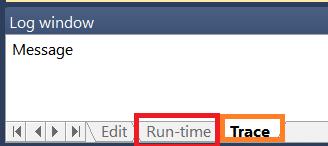
AmiBroker log window
Excel
- Import all three modules, not just one:
AutoTraderConfig,AutoTraderWebDirectandAutoTraderClientDirect. - Clear the macro warnings. Enable Editing, Enable Content, and unblock the file in its Windows properties.
- Save as a macro-enabled workbook (
.xlsm). A workbook saved in any other format loses its code.
If you use the APIs directly from your own code
There are two common mistakes.
- Your request is missing the authentication header that contains the API key. Add the API key to the HTTP header. Many samples are available in the API docs (see the HTTP tab).
- You are passing invalid request parameters or missing the mandatory ones. The best way to find this out is to compare your request with the sample requests in the API docs (see the HTTP tab). The API parameters page lists each field.
Make sure you used our API functions in your code
Review the client setup documentation and confirm you have made the needed changes to use our API functions.
You can also debug your trading strategy to see how it behaves when there is a signal.
