Orders
View, cancel and modify live orders from all your accounts in one screen.
The Orders screen shows the live status of orders from all your trading accounts in one place. You can filter and search orders, select one or many at a time, and then cancel or modify them in a single click. Bulk-modifying multiple orders at once is a feature unique to AutoTrader Web.
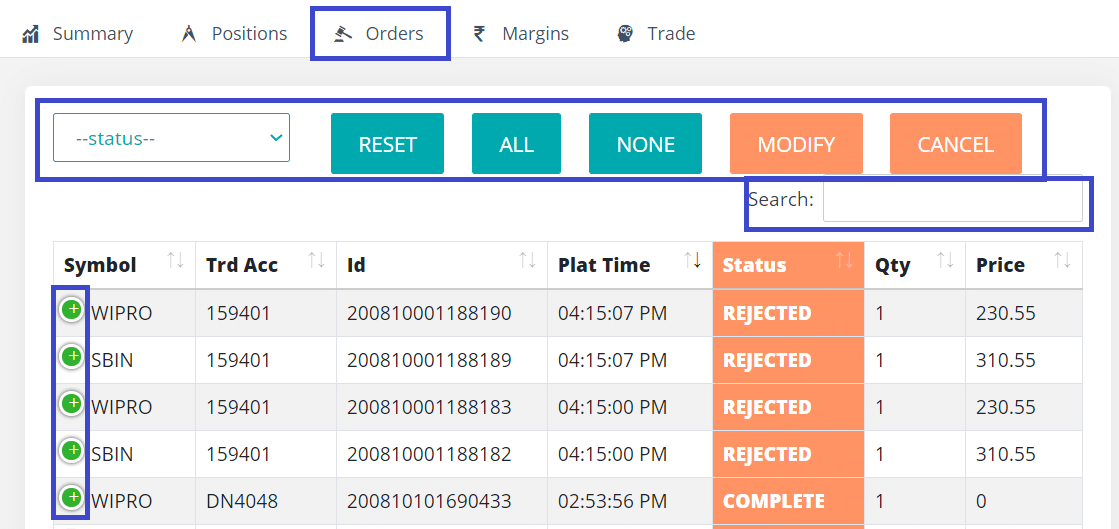
To see the full details of a single order, click the plus (+) sign at the start of the row. The options below give you more ways to work with your orders.
Summary panel
At the top of the Orders tab is a summary panel (collapsed by default — click it to expand). It is calculated from the rows currently shown, so your filters affect it. It shows:
- Quick numbers: Total orders (and how many accounts and symbols), Filled (with the completion rate), Rejected, and Open · Pending.
- When expanded: a status breakdown bar; a By account table (total, filled, rejected, cancelled, fill rate); a By symbol table; Rejection reasons (shown when there are rejected orders); and a Needs attention area.
- A Count / Quantity toggle switches the figures between order counts and quantities.
Columns
Each row is one order. For derivatives, quantity is also shown in lots.
| Column | Meaning |
|---|---|
| Symbol | The trading symbol (broker-independent). Next to it, a small copy icon lets you re-place a similar order (it works for any order status). On master accounts, a Copy Log link shows how the order was copied to your child accounts. |
| Nickname | The nickname (pseudo account) of the trading account. |
| Trd Acc | The trading account (login id). |
| Id | The order id in our system. |
| Update Time | When the order was last updated. |
| Status | Order status, shown as a coloured pill (for example OPEN, COMPLETE, REJECTED, CANCELLED). |
| Qty | Order quantity. |
| Price | Order price. |
| Ltp | Last traded price. Updates live. |
| Variety | Order variety (for example regular, bracket, cover or after-market). |
| Trade | BUY or SELL. |
| Order | Order type (for example LIMIT, MARKET, SL, SL-M). |
| Product | Product type (for example intraday, delivery or margin). |
| Exch | Standard exchange code. |
| Trig Prc | Trigger price. |
| Fill Qty / Pend Qty | Filled / pending quantity. |
| Avg Prc | Average fill price. |
| Pub Id | Publisher id — which API or strategy placed the order. |
| Exch Id | Exchange order id. |
| Parent Id | Parent order id (for the child legs of a bracket or cover order). |
| Disc Qty | Disclosed quantity. |
| AMO | Whether it is an after-market order. |
| Validity | Order validity (for example DAY or IOC). |
| Exch Time | Exchange timestamp. |
| Reject. Reason | Why the order was rejected, or why it failed. Orders that fail on their way out now show a reason here too, not only the ones your broker rejected. |
| Br Status | The raw status text from the broker. |
| Br Exch / Br Symbol | Exchange and symbol as named by the broker. |
| Day | Day order flag. |
| Client | The broker client id. |
| Platform | The broker platform used. |
| Broker | The broker for this account. |
| Copy Log | On master accounts, a link to the copy log for that order (handy when you contact support). |
Bold numbers
On every row, the number your order is still waiting for is shown in bold.
- On a stop-loss order that has not fired yet, the bold number is the Trig Prc (trigger price) — the level the market has to reach before your order goes out.
- On every other order, the bold number is the Price.
- A market order has no price to wait for, so nothing is bold on that row.
Once a stop-loss order has filled, the bold number moves to the Price. This lets you glance down the screen and read the level each order is waiting at, without mistaking it for the limit price that only applies after it fires.
Filter by order status
Use the status buttons above the table to switch between OPEN, CLOSED and ALL orders. You can also find orders using the search box.
Reset
The Reset button clears all filters, including the search text, and shows your open orders by default.
Pages on large screens
If the screen has more than about 1,000 orders, it is shown in pages of 100 orders, with page buttons below the table. This keeps the screen quick to open. With fewer orders, everything stays on one page as before.
Nothing is hidden by this. Select, the totals, the search box and the Excel or CSV export all still work on every order that matches your filter, across all pages. See why the screen shows pages.
Selecting orders
To select one or more orders, click on the order row. Click again to deselect it.
The Select button selects every order that matches your current filter, on every page — not only the page you are looking at. Orders hidden by a filter are not selected.
- To select only OPEN orders, first filter open orders using the status buttons, then click Select.
- To select all orders of a specific account, first enter that account number in the search box, then click Select.
- To select all orders of one symbol, choose that symbol in the filter box under the Symbol column heading, then click Select.
The Deselect button clears the selection on all pages.
The fast way to pick many orders
If you have a hundred orders and want to act on fifty of them, do not click fifty rows. Filter first, then select:
- Set the filter box under a column heading. For example, set Symbol to
SBIN. - Click Select. It takes every order left after your filter, on every page.
- Click Modify or Cancel.
You can filter more than one column at the same time. Set Symbol to SBIN and Order to LIMIT, and Select then takes only your limit orders in that symbol. This turns a long job of clicking into three clicks.
If you start clicking rows one at a time, the screen will show you this shortcut and mark the filter box to use. It appears only when filtering would clearly save you time, so you will not see it on a short list. On a long list, a shorter version stays in the bottom left corner, so you can still read it after you have scrolled down. It only tells you — it never changes your filters or your selection. Click Got it, hide this for now to put it away; it stays hidden for 30 days.
If you do not see the filter boxes under the column headings, switch on Column Filters in Settings -> General.
Cancel an order
Select one or more OPEN orders and click Cancel to cancel them in a single click. Only open orders can be cancelled. When it finishes, a results window shows the outcome for each account.
Modify an order
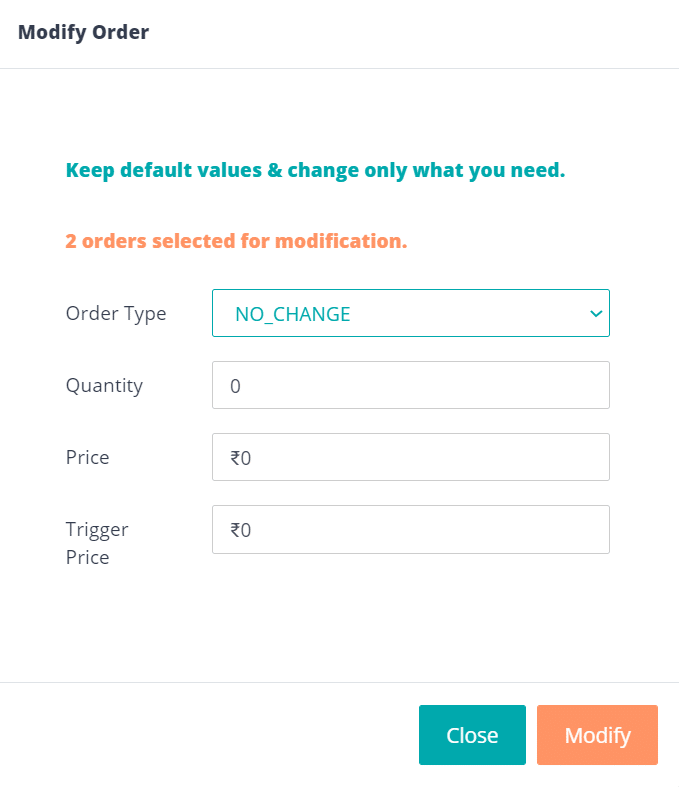
This feature lets you modify one or more OPEN orders with a single click. It is useful when you want to make the same change to many orders at once, instead of changing them one by one.
Select the orders you want to modify and click Modify. The Modify Order window opens. Change only the values you need, and leave the rest as they are. It has:
- Price, Quantity and Trigger Price fields.
- Order Type – keep the current type, or switch to LIMIT, MARKET, STOP_LOSS or SL_MARKET. Leaving it on “Keep current type” preserves each order’s existing type, which is handy when you modify many orders at once.
- Disclosed Qty (%) – optionally show only part of the quantity to the market. Any value below 10% is raised to 10% and any value above 100% is capped when you submit; leave it at 0 to keep the current disclosed quantity.
- A live LTP and market depth ladder when the selected orders are for a single symbol — click any bid or ask price to drop it into the Price field. When you select orders across different symbols, the ladder at the top is hidden, because depth has no meaning across mixed symbols.
Press ENTER to submit or ESC to close.
What you picked, shown inside the window
The window opens with its price fields blank, because it changes only what you fill in. That makes it important to see what each order currently holds — otherwise you are typing a price with nothing to judge it against. So the window lists every order you selected, one line each:
- BUY or SELL, and the symbol,
- the quantity, and separately how much of it has already been filled,
- the order’s current type and price,
- its trigger price, shown only for stop-loss orders where it means something,
- the live price for that symbol, and
- the product type and the account.
The live price on each line keeps updating while the window is open, and it is shown per order — so even when you have picked several different symbols, every one of them still shows its own current price.
Moving the window
You can move this window out of the way. Drag it by its title bar and it stays where you put it, including the next time you open it on that same computer. Once you have moved it, a small ⌖ button appears in the title bar — click it, or double-click the title bar, to put the window back in its usual place. It can never be dragged off the edge of the screen, so it cannot get lost.
Because the window can be moved, clicking outside it no longer closes it. That used to throw away a half-typed price. Use Cancel or the ESC key to close it.
Moving a stop-loss? Change both prices. On a stop-loss limit (SL) order, the limit price must stay on the correct side of the trigger price: at or below it on a SELL, at or above it on a BUY. If you change only the Trigger Price and leave the Price field empty, the order keeps its old limit price, and moving the trigger far enough makes the two cross. AutoTrader Web checks this before anything is sent and tells you which orders need fixing, so nothing reaches your broker only to be rejected. When you have several orders selected, each one is checked against its own prices — you can then correct them, or go ahead with the ones that are fine. See Trigger price rejected.
Modifying multiple orders with a single click is a unique feature, which is only available on AutoTrader Web.
Place a similar order
Next to the Symbol in each row is a small copy icon. Click it to open the Trade tab pre-filled with that order’s details, so you can quickly place a similar order. This works for an order in any status (open, complete, rejected or cancelled).
Copy Log
On master accounts, a Copy Log link appears next to the Symbol (and in the last Copy Log column). It shows how that order was copied to your child accounts — useful when you contact support about a copy-trading order.
Column ordering and sorting
Based on user feedback, we added custom column ordering and sorting for the portfolio tables: positions, orders, margins and holdings.
- Rearrange columns by clicking a column header and dragging it.
- Apply sorting on your preferred column.
Note: These settings are saved to your account, so your column order and sorting stay the same even when you sign in from another computer, mobile or browser.
We strongly recommend going through our PMS (Portfolio Management System) tool.
Frequently asked questions
An order of mine failed. Where do I see the reason?▾
Look at the Reject. Reason column on that row. It shows why your broker rejected the order, and it now also shows why an order failed on its way out, for example when your broker did not answer in time. One kind of message needs care. If it says no reply came back, we cannot tell whether your broker received the order or not. Open your order book and check before you place it again, or you can end up with two orders.
I have hundreds of orders. Is there a faster way than clicking each row I want?▾
Yes, and it turns a long job into three clicks. Filter first, then select. Set the filter box under a column heading — for example set Symbol to SBIN — then click Select, which takes every order left after your filter on every page, and then click Modify or Cancel. You can filter more than one column at the same time, so Symbol SBIN plus Order LIMIT gives you only your limit orders in that symbol. The same method works on the Positions, Holdings and GTT tabs. If you begin clicking rows one at a time, the screen offers you this shortcut and marks the filter box to use. It speaks up only when filtering would clearly save you time, and on a long list it keeps a shorter reminder in the bottom left corner so you can read it without scrolling back to the top.
I changed only the trigger price of my stop-loss order. Why is it asking me to change the limit price too?▾
Because a stop-loss limit order carries two prices, and they must stay on the correct side of each other: on a SELL the limit price must be at or below the trigger price, and on a BUY it must be at or above it. The Modify window changes only the fields you fill in, so if you type a new trigger price and leave Price empty, the order keeps its old limit price. Move the trigger far enough and the two prices cross, and the order would be rejected. Type the new limit price as well, and both are updated together. This does not apply to a stop-loss market order, which has no limit price.
Why is one of the two prices on my stop-loss order shown in bold?▾
The bold number is the one your order is still waiting for. A stop-loss order carries two prices — the trigger price, which is the level the market has to reach, and the limit price, which applies once it fires. While the order is still waiting, the trigger price is shown in bold, because that is the level you are watching. On an ordinary limit order the price itself is bold instead, and on a market order nothing is bold, because there is no price to wait for. Once a stop-loss has filled, the bold number moves to the price. This only changes how the row is displayed — it changes nothing about the order itself.
I selected many orders to modify and was told some of them would be refused. What happens to the rest?▾
Nothing is sent until you decide. Each selected order is checked against its own prices, so a value that suits one order may not suit another — for example one new limit price against stop-loss orders that sit at different trigger prices. You are shown exactly which orders have a problem and why, and then you can either go back and correct the values, or go ahead and modify the ones that are fine. The orders that were fine are never changed without your say-so.
The Modify window does not close any more when I click outside it. Why?▾
That is deliberate. These windows can now be dragged out of the way by their title bar, so clicking on the table behind them has become a normal thing to do — and it used to close the window and throw away whatever you had typed. Now only Cancel, the ESC key, or the close button will shut it. The same applies to the Adjust Holdings and Square-off Account windows.
Next steps
Thanks for the feedback. Still stuck? Contact support.
Last updated 21 September 2026
