Excel Setup
Place orders into one or many accounts straight from a spreadsheet with the ready-made Order Pad, and a VBA module set for your own macros.
Two ways in. Download the ready-made Order Pad, put your API key on its Configuration sheet and start placing orders, with nothing to import. Or download the three modules from your account and import them into a workbook of your own, which gives you every API function to call from VBA.
What it is
The Excel modules let you place orders into one or many accounts straight from a spreadsheet. There is a ready-made workbook, the Order Pad, that places your orders and tells you what happened to each one, and the full set of API functions for anyone who codes strategies in VBA (Excel macros).
How it connects
Excel talks to AutoTrader Web directly, over the internet. There is no second program to install and nothing that has to stay running in the background.
Before you begin
Have these ready first:
- Excel 2010 or newer on Windows, with macros enabled.
- An AutoTrader Web account.
- At least one broker account added as a pseudo account.
Download and import
- Sign in to your account at webx.stocksdeveloper.in
- Go to Tools → Library
- Click Download on the Excel card, and enter your AutoTrader password when asked
- Save and extract the zip file. It holds three files:
- AutoTraderConfig.bas — your API key and a few settings
- AutoTraderWebDirect.bas — all the API functions
- AutoTraderClientDirect.bas — the bulk order buttons
- Open your workbook and press Alt + F11 to open the VBA editor
- Choose File → Import File and import all three files
- Save your workbook as a macro-enabled workbook (.xlsm)
The download already has your API key inside it. That is why the page asks for your password before it gives you the file.
Keep this file to yourself. Anyone who has it can place orders in your accounts. Do not e-mail it, and never attach it to a support request or a forum post.
Where your key lives
Your key sits in one module: AutoTraderConfig. If you ever need to change it, open the VBA editor, edit that module and save.
The same module holds a few optional settings, such as how long the modules re-use portfolio data before asking again, and a switch to print every request and reply to the Immediate window while you are setting things up.
Warnings to clear first
Excel may show the warnings below. Here is what to do for each (see the screenshots that follow).
- Enable Editing
- Enable Content (Enable Macros)
- Unblock Macros
- Open Windows File Explorer and go to the folder where you saved the file.
- Right-click the file and choose Properties from the context menu.
- At the bottom of the General tab, select the Unblock checkbox and select OK.
See the screenshots below for more details.

Enable Editing
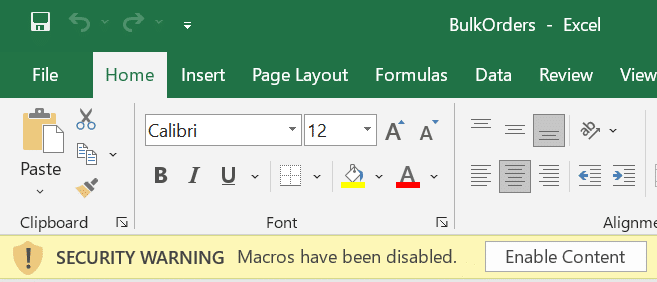
Enable Macros
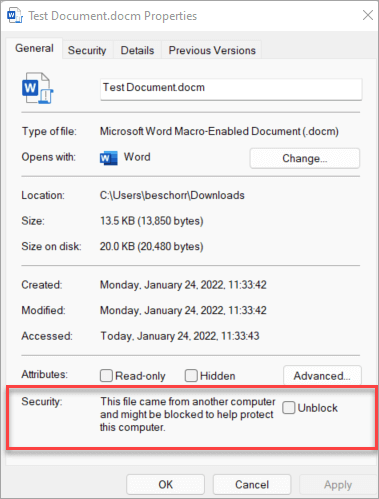
Excel – Unblock Macros
The Order Pad
The Order Pad is a ready made workbook that places orders into one account or many, and tells you what happened to each one. Download it from the Excel Utilities folder.
It writes your broker’s order id, the status and the reason next to every order it sends, so you never have to go somewhere else to find out whether a run worked.
You can make as many copies as you like. Many users keep one copy per strategy. These are normal Excel files, so you can auto fill the order data with Excel formulae or macros.
Set it up once
There is nothing to import. Every module the Order Pad needs is already inside the workbook.
- Open the downloaded workbook and clear the warnings above
- Put your API key in the Value column on the Configuration sheet
- Save the workbook
Your API key is in AutoTrader Web under Settings → Security. It is hidden, so click Reveal, type your AutoTrader password, then click Copy.
Once your key is in it, this file can place real orders in your accounts. Treat it like a password: do not e-mail it and do not attach it to a support request.
The sheets
| Sheet | What it is for |
|---|---|
| Configuration | Your API key, the allocation mode, and a time to place at |
| Orders | What you want to place. One row per order |
| Accounts | Which accounts to place for, and how much each one gets |
| Results | What happened. Written by the tool |
| Help | How to use it, with example order rows you can copy |
The buttons
The buttons sit along the top of the Orders, Accounts and Results sheets, and stay in place as you scroll.
| Button | What it does |
|---|---|
| Check accounts | Reads each ticked account and shows its free margin. Places nothing |
| Place orders | Tells you how many real orders that is, asks you to confirm, then sends them |
| Refresh | Re-reads the status of everything already in Results |
| Arm timer | Places automatically at the time on the Configuration sheet |
| Cancel timer | Cancels an armed timer. While one is armed, this button counts down to it |
| Clear results | Empties the Results sheet. This clears the sheet only. It cancels nothing at your broker |
Press Check accounts before a big run. It catches a wrong account name before you send fifty orders, not after.
Every button checks its own basics first and tells you everything that is wrong in one go, rather than one problem at a time. A missing API key, an account with no tick, a LIMIT order with no price: none of these reach your broker.
Hover over any column heading for a note on what belongs in it.
Sending one order to many accounts
Leave the Account column on an order row blank. That order then goes to every account you ticked on the Accounts sheet. Fill the Account column in and that row goes to that one account only.
How much each account gets is set by Allocation mode on the Configuration sheet:
- SAME: every account gets the quantity on the order row
- PER ACCOUNT: every account gets its own quantity from the Accounts sheet
- SPLIT: the order quantity is divided across accounts in proportion to Weight. Rounding leftovers go to the first account, so the pieces always add back up
There is no limit on the number of orders. The tool stops when it reaches a blank row. The accounts you list must be pseudo accounts.
Placing at a set time
Put a time such as 09:20:00 on the Configuration sheet and press Arm timer. Your orders go out when that time arrives, and the Cancel timer button counts down so you can see it is armed. This is useful if you want your orders entered exactly when the market opens.
It uses your computer’s clock, so make sure your system time is correct, and leave the workbook open.
More information
Find the correct Exchange & Symbol from the Global Instrument Search system. Remember to use the Broker Independent Symbol assigned by AutoTrader.
The Help sheet inside the workbook has example order rows you can copy and edit. Nothing on that sheet is read by the tool, so the Orders sheet arrives empty. Opening the file and pressing a button can never place an example order.
What you see when orders are placed
Each order waits for your broker’s answer, so a run across many accounts takes a little longer and tells you what actually happened.
At the end you get one message saying how the run went. If anything failed, that message names the reason. The Results sheet then has a row per order, with three possible answers:
- An order id: your broker took it. That id is the one in your order book
- NOT PLACED: nothing reached your broker. Safe to fix and run again
- UNCONFIRMED: the order reached your broker and your broker never answered. It may be live
If anything is unconfirmed, check your order book before running the sheet again. Running it again would place those orders a second time.
Your broker’s order book takes a few seconds to catch up, so a status read straight after placing is often still the old one. Run OrderPadRefresh a few seconds later to bring Results up to date.
Writing your own VBA
The AutoTraderWebDirect module exposes every API function. Place an order like this:
Dim orderId As String

' Look up the exchange and symbol with the Global Instrument Search,
' then read them from cells, or set them here.
Dim exchange As String: exchange = Range("B1").Value
Dim symbol As String: symbol = Range("B2").Value

orderId = PlaceOrder("MY-ACCOUNT", exchange, symbol, "BUY", "MARKET", _
    "INTRADAY", 1, 0, 0)

If orderId = AT_UNCONFIRMED Then
    ' Reached the broker, never confirmed. Check the order book.
ElseIf orderId = "" Then
    ' Not placed. Safe to try again.
Else
    ' Placed. This is your broker's order id.
    Debug.Print GetOrderStatus("MY-ACCOUNT", orderId)
End If
Reading works the same way it always did, and a sheet full of read functions costs one request rather than one per cell — the modules keep a short-lived copy of your portfolio.
Place orders from a button or a macro, never from a worksheet formula. Placing waits for your broker, and a formula that waits will make the sheet feel stuck.
Write the code with AI
You can have an AI coding assistant (ChatGPT, Claude, Gemini or Copilot) write your VBA macros for you. Many programmers now start this way, and it is much faster than a blank page. It only works well if the AI reads our documentation first. Without it, the AI guesses function names that look right and then fail.
- Give it our Excel file first: stocksdeveloper.in/ai/trading-api/excel.txt. It has every API call with Excel examples, and nothing from other languages to mix up. If your tool cannot open links, open the file yourself, save it, and attach it to the chat.
- Then send a prompt like this one. Replace the parts in CAPITALS.
Read this file first: https://stocksdeveloper.in/ai/trading-api/excel.txt
It is the official reference for the AutoTrader Web Excel library.
Use only the functions, parameters and values it defines.

Write an Excel VBA macro that DESCRIBE WHAT YOU WANT IT TO DO HERE,
using the functions in the AutoTraderWebDirect module.
It must run from a button, never from a worksheet formula.
My account nickname is MY_ACCOUNT. Do not put any API key in the
code. The library I imported already has it.

Then check your code line by line against the reference, and list
anything you were not sure about instead of guessing it.- Test it before real money. Run the macro from a button once, with the smallest quantity, in one account only.
Never paste your API key into an AI chat. Your key is already inside the library files you downloaded, so never attach those files to a chat either. The AI only needs our documentation file, not your library.
Build with AI has more prompts, the mistakes these tools make, and what to check before you trade with the result.
Reading your portfolio by column name
Alongside the GetHoldingQuantity / GetPositionNetQuantity / GetOrderStatus functions, which have not changed, you can pick a row out of your portfolio and then read any field on it by name.
Four functions find a row:
| Function | Finds |
|---|---|
AtFindHolding(account, exchange, symbol) | one holding |
AtFindPosition(account, category, type, exchange, symbol) | one position |
AtFindOrder(account, orderId) | one order |
AtFindMargin(account, category) | EQUITY, COMMODITY or ALL |
AtFound tells you whether the row exists. This matters: a holding you do not have and a lookup that went wrong both read as 0, and only AtFound separates them.
AtText and AtNum then read a field by name. Names are the column names your data already uses, and upper or lower case both work — QUANTITY, PNL, LTP, AVGPRICE, ISIN, STATUS, TRADETYPE, NETQUANTITY and so on. Ask for a name that does not exist and you get a blank, never a different field by mistake.
Dim h As String
h = AtFindHolding("MY-ACCOUNT", "NSE", "IOC")

If AtFound(h) Then
    Debug.Print AtText(h, "QUANTITY")
    Debug.Print AtText(h, "AVGPRICE")
    Debug.Print AtNum(h, "PNL")
End If
Straight into a cell
These are reading functions, so they also work as ordinary worksheet formulas — no macro and no button needed:
=AtText(AtFindHolding("MY-ACCOUNT", "NSE", "IOC"), "QUANTITY")
=AtNum(AtFindMargin("MY-ACCOUNT", "EQUITY"), "AVAILABLE")
This is reading only. Keep placing orders in a button or a macro, as above.
Going through a whole portfolio
You can also walk your portfolio without knowing the symbols in advance, which the older functions cannot do:
Dim i As Long, p As String

For i = 1 To AtPositionCount("MY-ACCOUNT")
    p = AtPositionAt("MY-ACCOUNT", i)
    Debug.Print AtText(p, "INDEPENDENTSYMBOL"), AtText(p, "NETQUANTITY")
Next i
AtHoldingCount / AtHoldingAt and AtOrderCount / AtOrderAt work the same way.
Rows are numbered from 1, not from 0. Start at
1and end at the count, exactly as above. A loop written from0reads nothing at all for the first row and stops one row short — and it does that quietly, with no error, so it looks like missing data rather than a mistake in the loop.
API functions
A detailed explanation, with examples, is provided for each function in the API documentation.
Portfolio summary functions
The portfolio summary functions — GetPortfolioMtm, GetPortfolioPnl, and the position and order counts — are not part of these modules. Use the position and order functions instead. For example, add up GetPositionMtm for the positions you care about.
Holdings
Holdings functions are new in Excel. GetHoldingQuantity, GetHoldingAvgPrice, GetHoldingPnl and the rest work the same way as the position functions, and take your account and the symbol.
Frequently asked questions
Do I need to install anything besides Excel?▾
No. Excel talks to AutoTrader Web over the internet on its own. The Order Pad needs nothing at all beyond your API key. For a workbook of your own, you import three files and save it as a macro-enabled workbook.
Why are these .bas files instead of a ready-made add-in?▾
Because your API key has to go inside the download, and an add-in keeps its code in a form that cannot carry it. Plain text modules let us hand you a copy that already has your key in it.
What happened to the four bulk order tools?▾
The Order Pad replaces all four. It does everything they did from one sheet, including copying an order across accounts with a different quantity or weight for each, and placing at a set time. It also does what they could not: it tells you your broker's order id, the status and the reason for every order it sends. There is nothing to import into it either, unlike the older tools.
Next steps
Thanks for the feedback. Still stuck? Contact support.
Last updated 8 October 2026
