Holdings
View demat holdings and sell them across many accounts in one step.
The Holdings tab shows all the stocks held in your demat account. From here you can select one or more holdings and square them off (sell) with control over the exchange preference, order type, product (delivery or MTF), quantity and price. You can also rearrange and sort the columns to suit your view.
This is where you will see all of your holdings (stocks) that you have in your demat account.
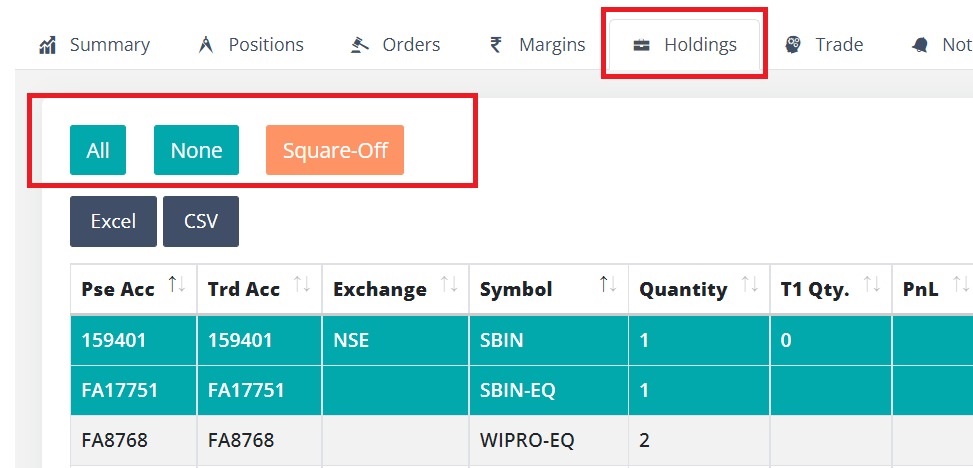
Columns
Each row is one stock in your demat holdings.
| Column | Meaning |
|---|---|
| Nickname | The nickname (pseudo account) of the trading account. |
| Trd Acc | The trading account (login id). |
| NSE-Symbol / BSE-Symbol | The stock’s symbol on each exchange. |
| Tot. Qty | Total holding quantity (Quantity + T1 quantity). |
| Curr. Val. | Current market value of the holding. |
| AT PnL Live | Live profit or loss, ticking with the market. |
| PnL | Profit or loss. |
| Avg. Price | Average buy price. |
| LTP | Last traded price. Updates live. |
| Quantity | Free (tradeable) quantity. |
| T1 Qty. | Quantity still in T1 settlement (bought but not yet delivered). |
| Collateral Qty. / Collateral Type | Quantity pledged as collateral, and its type. |
| Haircut | The collateral haircut percentage. |
| ISIN | The instrument’s ISIN code. |
| Exchange | The exchange. |
| Symbol | The broker symbol. |
| Inst. Token | The instrument token. |
| Product | Product type. |
| Day | Day flag. |
| Platform | The broker platform used. |
| Broker | The broker for this account. |
Square-off and Increase
The Holdings tab has two action buttons. Both work on the rows you select first — click rows to select them, or use a filter and then the Select button to take many at once. If you click a button without selecting any rows, you get a “No HOLDINGS selected” message.
- Square-off – places SELL orders to reduce or exit the selected holdings.
- Increase – places BUY orders to add to the selected holdings.
Both buttons open the same Adjust Holdings window. You set the order details there, then confirm with the SELL button (for square-off) or the BUY button (for increase) at the bottom.
Selecting holdings
To select one or more holdings, click on the holding row. Click again to deselect it.
The Select button takes every holding that matches your current filter. The Deselect button clears the selection.
If you want to act on many holdings, do not click each row. Filter first, then select:
- Set the filter box under a column heading. For example, set Trd Acc to one account.
- Click Select. It takes every holding left after your filter.
- Click Square-off or Increase.
You can filter more than one column at the same time, so you can narrow the list down as much as you need.
If you start clicking rows one at a time, the screen will show you this shortcut and mark the filter box to use. It appears only when filtering would clearly save you time, so you will not see it on a short list. On a long list, a shorter version stays in the bottom left corner, so you can still read it after you have scrolled down. It only tells you — it never changes your filters or your selection. Click Got it, hide this for now to put it away; it stays hidden for 30 days.
If you do not see the filter boxes under the column headings, switch on Column Filters in Settings -> General.
What you picked, shown inside the window
The top of the window confirms how many holdings you picked (for example, “3 holdings selected for square-off”) and then lists them, one line each:
- the symbol,
- the quantity you hold, and separately any part of it that is still being settled,
- your average price,
- the live price, and
- the profit or loss on that holding, with the account it belongs to.
The live price and the profit or loss keep updating while the window is open, so you can judge your order without reading the rows behind it.
The symbol on each line is the one that would actually be traded under the Exchange choice you make below. If you pick a single exchange and that holding is not listed on it, the line says so in plain words instead of showing a symbol — so you find out before you send the order, not after your broker refuses it.
Moving the window
You can move this window out of the way. Drag it by its title bar and it stays where you put it, including the next time you open it on that same computer. Once you have moved it, a small ⌖ button appears in the title bar — click it, or double-click the title bar, to put the window back in its usual place. It can never be dragged off the edge of the screen, so it cannot get lost.
Because the window can be moved, clicking outside it no longer closes it. That used to throw away a half-filled form. Use Cancel or the ESC key to close it.
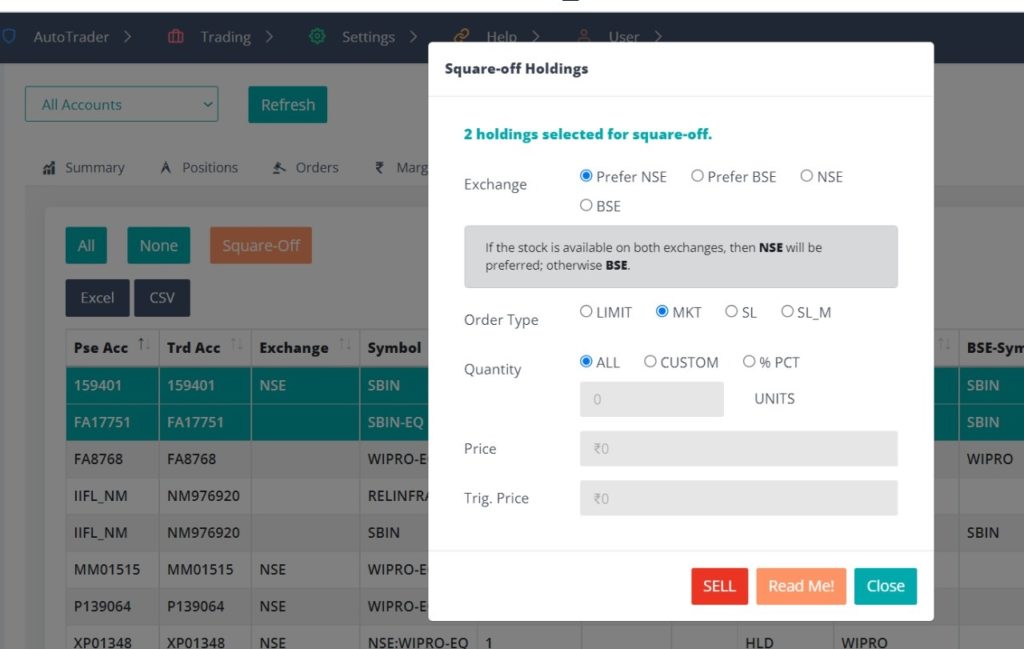
Options in the Adjust Holdings window
Exchange
The preference for the stock exchange on which you want the orders to be placed.
| Option | Behaviour |
|---|---|
| Prefer NSE | If the stock is available on both exchanges, NSE is preferred. Otherwise BSE is chosen. |
| Prefer BSE | If the stock is available on both exchanges, BSE is preferred. Otherwise NSE is chosen. |
| NSE | Stocks are traded strictly on NSE. You get an error if the stock is not available on NSE. |
| BSE | Stocks are traded strictly on BSE. You get an error if the stock is not available on BSE. |
Order Type
The type of order to place. The Price and Trigger Price fields turn on or off to match your choice.
| Option | Meaning |
|---|---|
| LIMIT | Order at the price you set. Price is enabled. |
| MKT | Market order, at the current price. |
| SL | Stop-loss (limit). Price and Trigger Price are enabled. |
| SL_M | Stop-loss market. Trigger Price is enabled. |
Product
The product your orders are sent with. One choice applies to every holding you selected.
| Option | When to use |
|---|---|
| DELIVERY | Normal holdings. This is the default. |
| MTF | Stock you bought with MTF (margin trading facility). Your broker may reject a DELIVERY sell of MTF stock. |
- If you selected both MTF and normal holdings, sell them in two steps: first one kind, then the other.
- With Increase (BUY), MTF buys with your broker’s margin trading facility. Its interest and rules are set by your broker.
Quantity
The quantity can be specified in different formats.
| Format | Meaning |
|---|---|
| ALL | All quantity available in the holdings. This is the default for square-off, and is not available for Increase (for a buy you choose how much to add). |
| CUSTOM | A custom quantity. For square-off this should be less than or equal to your available holdings quantity. |
| % PCT | Quantity as a percentage of the holdings quantity (it cannot be greater than 100%). |
Price and Trigger Price
- Price – applies to LIMIT and SL orders.
- Trigger Price – applies to SL and SL_M orders.
Disclosed Quantity (%)
Optionally show only part of your order quantity to the market, as a percentage of the order:
- 0 means the full quantity is visible (no disclosure).
- Any value below 10% is raised to 10% when you submit.
- Any value above 100% is capped at 100%.
- Disclosed quantity is used only for LIMIT and SL orders. It does nothing for MKT or SL_M orders, which fill immediately, so the field is greyed out for those.
Read Me! and sending the order
- The Read Me! button shows an important reminder before you act (see Precautions below).
- Click SELL (square-off) or BUY (increase) to send the orders. A spinner shows while they are being sent.
- When it finishes, a results window lists the outcome for each account, so you can see exactly what happened per account. If something fails, the window stays open so you can fix the input and try again.
Precautions
- Almost all brokers DO NOT update the holdings in real-time. So if you have bought or sold some holdings today, check the Positions tab for the current-day status.
- The % quantity feature uses quantity as seen in the holdings page. Take this into account if you are using % quantity to buy or sell the same holdings multiple times.
- The system calculates Total Holding Quantity = Quantity + T1 quantity.
- To sell holdings, you must have a DDPI or POA submitted with the broker. See this article for more details.
Holdings summary panel
At the top of the Holdings tab is a summary panel (collapsed by default — click to expand). It rolls up your holdings across all accounts and shows:
- Current value, invested amount, unrealised profit/loss (with %) and day profit/loss.
- Top holdings and how much of your portfolio sits in them (a concentration check).
- A per-account breakdown, and the day’s top gainers and losers.
- A needs-attention area that flags big movers, heavy concentration in one stock, and any T1 settlement quantity still pending.
Column ordering and sorting
Based on user feedback, we have added custom column ordering and sorting for the portfolio tables (positions, orders, margins, holdings).
- Rearrange the columns by clicking on a column header and dragging it.
- Apply sorting for your preferred column.
Note: These settings are saved to your account, so your column order and sorting stay the same even when you sign in from another computer, mobile or browser.
Frequently asked questions
How do I sell a stock I bought with MTF?▾
Select the holding, click Square-off, and choose MTF under Product in the Adjust Holdings window. If you leave it on DELIVERY, your broker may reject the sell as more than you hold. If you picked both MTF and normal holdings, sell them in two steps, one kind at a time.
The Adjust Holdings window covers the rows I want to read. Can I move it?▾
Yes. Drag it by its title bar and it stays where you put it, including the next time you open it on that computer. A small target button appears in the title bar once you have moved it — click that, or double-click the title bar, to put it back. It can never be dragged off the screen, so it cannot get lost. You may not even need to move it: the window now lists every holding you selected, with the symbol, quantity, average price, live price and profit or loss, so the detail you were looking for is already inside it.
Why does one of my selected holdings show a message instead of a symbol?▾
That happens when you pick a single exchange under Exchange, and that particular stock is not listed on it. The line tells you so, instead of showing a symbol that could not be traded. Switch back to one of the Prefer options and it will use whichever exchange the stock is available on. Telling you here means you find out before the order is sent, rather than getting a rejection from your broker afterwards.
Next steps
Thanks for the feedback. Still stuck? Contact support.
Last updated 1 October 2026
