Margins
See total, used and available funds across every account in one screen.
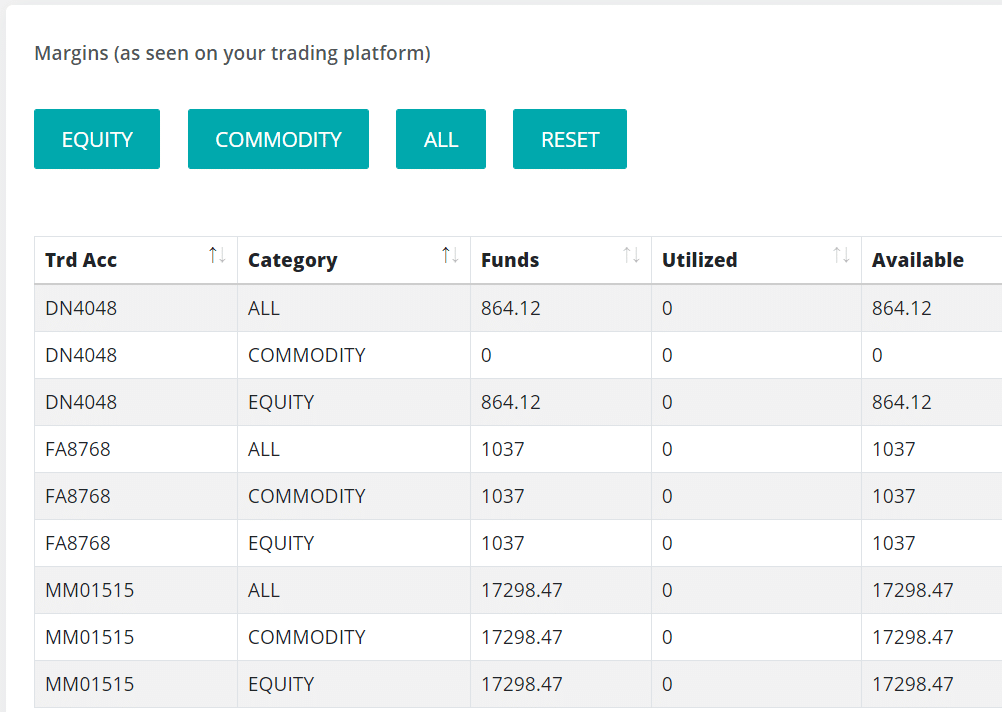
The Margins screen shows live fund status for every trading account in one place. You can see total, utilized and available funds, plus other margin columns. You can also rearrange and sort the columns to match how you work.
The Margins screen brings together fund details from all your trading accounts across supported Indian stock brokers.
You can see total, utilized and available funds, along with many other margin columns.
Summary panel
At the top of the Margins tab is a summary panel (collapsed by default — click it to expand). It is calculated from the rows currently shown, so your filters affect it. It shows:
- Quick numbers: Total margin, Available (and how much is deployable), Utilized (with the used %), and Day MTM.
- When expanded: a Composition bar (available vs utilized), health pills, a By account table (total, available, utilization, day MTM), and a Needs attention area.
Columns
Each row is one trading account’s funds and margin.
| Column | Meaning |
|---|---|
| Nickname | The nickname (pseudo account) of the trading account. |
| Trd Acc | The trading account (login id). |
| Category | EQUITY or COMMODITY. |
| Total | Total margin. |
| Net | Net margin. |
| Funds | Available funds. |
| Utilized | Margin used. |
| Available | Margin still available. |
| Collateral | Collateral value. |
| Real. Mtm / Unreal. Mtm | Realised / unrealised mark-to-market. |
| Adhoc | Adhoc margin added by the broker. |
| Span | SPAN margin (for derivatives). |
| Exposure | Exposure margin (for derivatives). |
| Payin / Payout | Funds paid in / withdrawn. |
| Day | Day flag. |
| Broker | The broker for this account. |
Use the Equity, Commodity and Total buttons to switch which segment’s margins are shown.
Column ordering and sorting
You can change how the portfolio tables look. This custom column ordering and sorting feature works on the positions, orders, margins and holdings screens.
- Rearrange the columns by clicking on a column header and dragging it.
- Apply sorting on your preferred column.
Note: These settings are saved to your account, so your column order and sorting stay the same even when you sign in from another computer, mobile or browser.
Related screens
We strongly recommend going through our PMS (Portfolio Management System) tool.
Next steps
Thanks for the feedback. Still stuck? Contact support.
Last updated 22 June 2026
