AmiBroker Library
Place orders from your AmiBroker strategy into one or many accounts, using our ready-made AFL library.
Download the AFL library from your AutoTrader Web account, extract it into your AmiBroker folder, and include it at the top of your strategy. Your API key is already inside the download, so there is nothing to type in and nothing else to install. The library ships ready-made sample AFLs for regular, bracket and cover orders, scanners, button trading and multi-account trading.
What it is
The AmiBroker library is an AFL library that lets you place orders from your AmiBroker strategy into single or multiple accounts. It ships ready-made sample AFLs for regular, bracket and cover orders, scanners, button trading and multi-account trading.
How it connects
AmiBroker talks to AutoTrader Web directly, over the internet. There is no second program to install and nothing that has to stay running in the background.
Before you begin
Have these ready first:
- AmiBroker 6.30 or newer, installed on your computer.
- An AutoTrader Web account.
- At least one broker account added as a pseudo account.
We test this library on AmiBroker 6.93, 64-bit. AmiBroker changes what it accepts from one version to the next, so if you are on a higher or lower version and something does not work, contact us and tell us your AmiBroker version. We will look at it.
On AmiBroker 5.8 to 6.29? See Older AmiBroker versions below.
Demos
All AmiBroker demos are available in this YouTube playlist.
Installation
- Sign in to your account at webx.stocksdeveloper.in
- Go to Tools → Library
- Click Download on the AmiBroker card, and enter your AutoTrader password when asked
- Save the zip file
- Extract it into your AmiBroker folder — the one that holds Broker.exe
- Default path: C:\Program Files\AmiBroker
- Start AmiBroker, or refresh your charts if it is already open
The download already has your API key inside it. That is why the page asks for your password before it gives you the file.
Keep this file to yourself. Anyone who has it can place orders in your accounts. Do not e-mail it, and never attach it to a support request or a forum post.
Where your key lives
Your key sits in one file: Formulas\Include\autotrader-http-config.afl. If you ever need to change it, edit that file and save.
The same file holds a few optional settings, such as how long the library re-uses portfolio data before asking again, and a switch to print extra logs while you are setting things up.
Integration
Once the library is extracted, the next step is to integrate it into your trading strategy. This is simple. You can also look at the samples available in the “Formulas\AutoTraderWeb” folder (look at the Charts tab in AmiBroker).
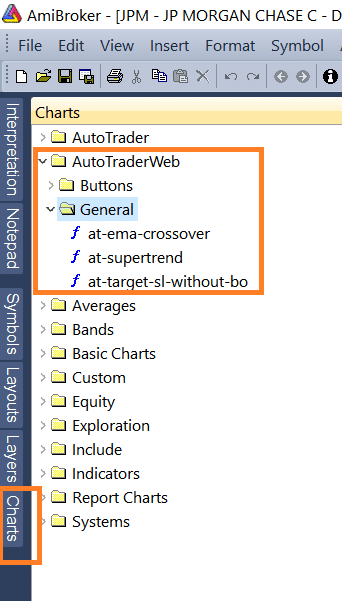
AutoTrader Web Sample AFLs
Warning: Do not modify these files. They are overwritten when you download the library again. Use them as a reference and copy the code into new AFL files if you need. Make sure your personal AFL files are NOT in the AutoTraderWeb folder.
Code
As with any other library, to use its functions in your strategy code, you must include it at the top of your strategy’s AFL.
#include <autotrader-v2.afl>That’s all. This AFL internally includes all dependencies. Now you can use the API functions provided in the library.
If you have an older strategy that includes autotrader-http.afl, it still works. That is simply the earlier name for the same file, and you do not have to change it.
Version 1 and version 2
Every sample comes twice, and the file name tells you which is which.
| Include this | What it needs | |
|---|---|---|
Version 2 — file names ending in -v2 | #include <autotrader-v2.afl> | AmiBroker 6.30 or newer. Nothing else. |
| Version 1 — the original file names | #include <autotrader.afl> | AmiBroker 5.8 to 6.29, with the Desktop Client installed and running. |
Version 2 talks to AutoTrader Web directly, so there is no second program to install and keep running. Start here.
Version 1 has not changed and is not going away. Use it only if you are on AmiBroker 5.8 to 6.29, which version 2 cannot support. See Older AmiBroker versions.
Moving a strategy from version 1 to version 2 is one line — the include. Every function keeps the same name, the same arguments and the same meaning.
Regular Order
orderId = placeOrder(AT_ACCOUNT, AT_EXCHANGE, AT_SYMBOL,
	"BUY", "MARKET", AT_PRODUCT_TYPE, AT_QUANTITY,
	buyPrice, defaultTriggerPrice(), True);
Bracket Order
orderId = placeBracketOrder(AT_ACCOUNT, AT_EXCHANGE, AT_SYMBOL,
	"BUY", "LIMIT", AT_QUANTITY,
	buyPrice, defaultTriggerPrice(), 5, 3, 1, True);
Cover Order
stoplossTriggerPrice = buyPrice - 5;
orderId = placeCoverOrder(AT_ACCOUNT, AT_EXCHANGE, AT_SYMBOL,
	"BUY", "LIMIT", AT_QUANTITY,
	buyPrice, stoplossTriggerPrice, True);
What placeOrder gives you back
placeOrder waits for your broker’s answer and returns your broker’s own order id. It is the same id you see in your broker order book, and it is what you pass to getOrderStatus, modifyOrder and cancelOrder.
There are three possible answers, and it is worth handling all three:
orderId = placeOrder(AT_ACCOUNT, AT_EXCHANGE, AT_SYMBOL,
	"BUY", "MARKET", AT_PRODUCT_TYPE, AT_QUANTITY,
	buyPrice, defaultTriggerPrice(), True);

if(orderId == AT_UNCONFIRMED) {
	// The order reached your broker and your broker did not confirm it.
	// It may be live. Do NOT send it again -- check your order book.
	_TRACE("Order sent but not confirmed. Check the order book.");
} else if(orderId == "") {
	// The order was not placed. Safe to try again if you want to.
	_TRACE("Order was not placed.");
} else {
	// Placed. This is your broker's order id.
	_TRACE("Order placed: " + orderId);
}
The middle case is rare, but it is the one that matters. If you treat a blank answer and an unconfirmed answer the same way, a strategy can place the same order twice.
Reading an order back after you place or change it
An order does not update the instant you place, modify or cancel it. It takes a few seconds to show its new state.
So this asks too early and reads the values from before the change:
orderId = placeOrder(...);
status = getOrderStatus(AT_ACCOUNT, orderId);
Read the order on a later bar, or a few seconds later. Blank or unchanged values straight after a change mean not updated yet. They do not mean the order failed. Your order book is always the final word.
Reading your portfolio by column name
Alongside the getHoldingQuantity() / getPositionNetQuantity() / getOrderStatus() functions, which have not changed, you can pick a row out of your portfolio and then read any field on it by name.
Four functions find a row:
| Function | Finds |
|---|---|
atFindHolding(account, exchange, symbol) | one holding |
atFindPosition(account, category, type, exchange, symbol) | one position |
atFindOrder(account, orderId) | one order |
atFindMargin(account, category) | EQUITY, COMMODITY or ALL |
atFound() tells you whether the row exists. This matters: a holding you do not have and a lookup that went wrong both read as 0, and only atFound() separates them.
atText() and atNum() then read a field by name. Names are the column names your data already uses, and upper or lower case both work — QUANTITY, PNL, LTP, AVGPRICE, ISIN, STATUS, TRADETYPE, NETQUANTITY and so on. Ask for a name that does not exist and you get a blank, never a different field by mistake.
h = atFindHolding(AT_ACCOUNT, "NSE", "IOC");

if(atFound(h)) {
	_TRACE("Quantity: " + atText(h, "QUANTITY"));
	_TRACE("Average price: " + atText(h, "AVGPRICE"));
	_TRACE("Profit or loss: " + atNum(h, "PNL"));
}
You can also go through a whole portfolio without knowing the symbols in advance, which the older functions cannot do:
for(i = 1; i <= atPositionCount(AT_ACCOUNT); i++)
{
	p = atPositionAt(AT_ACCOUNT, i);
	_TRACE(atText(p, "INDEPENDENTSYMBOL") + " " + atText(p, "NETQUANTITY"));
}
atHoldingCount() / atHoldingAt() and atOrderCount() / atOrderAt() work the same way.
Rows are numbered from 1, not from 0. Start the loop at
1and end it at<= count, exactly as above. A loop writtenfor(i = 0; i < count; i++)reads nothing for the first row and stops one row short. If you ask for a row that does not exist, you get an empty row and the library writes an error to the log (SD-ERR-AB-ROW). The error names the row you asked for and how many rows there are, so check the log if a loop seems to miss data.
Cancel Order
orderId = placeOrder(AT_ACCOUNT, AT_EXCHANGE, AT_SYMBOL,
	"BUY", "MARKET", AT_PRODUCT_TYPE, AT_QUANTITY,
	buyPrice, defaultTriggerPrice(), True);

// You can save this orderId in a static variable
saveStaticVariableText(AT_ACCOUNT, "ORDER_ID", orderId);

// Somewhere later in your code,
// when you want to cancel this order

// Read orderId from static variable
orderId = readStaticVariableText(AT_ACCOUNT, "ORDER_ID");

// Cancel the order
cancelOrder(AT_ACCOUNT, orderId);
API Functions
All API functions are available inside “Formulas\Include\autotrader-http-api.afl”. Do NOT modify this AFL file.
Note: A detailed explanation is provided for each function along with examples in the API documentation.
Parameters
The AFL library defines certain parameters that you can set in the chart/exploration parameters window. They are listed below.
| Parameter | Meaning |
|---|---|
| AT_ACCOUNT | Pseudo account |
| AT_EXCHANGE | Instrument’s exchange |
| AT_SYMBOL | Instrument’s symbol |
| AT_PRODUCT_TYPE | Default product type |
| AT_QUANTITY | Default quantity |
| AT_PRICE_PRECISION | Price precision for rounding |
| AT_DEBUG | Print additional logs |
| AT_AVOID_REPEAT_ORDER_DELAY | Avoid repeat order delay (in seconds) |
A broker independent instrument’s Exchange & Symbol can be looked up using this global instruments search tool.
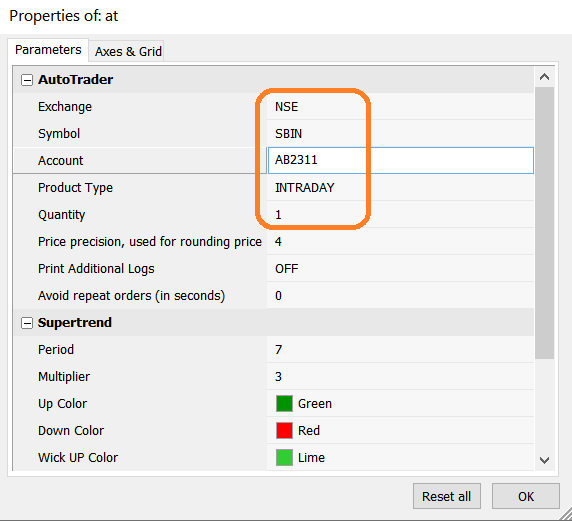
AmiBroker Chart Parameters
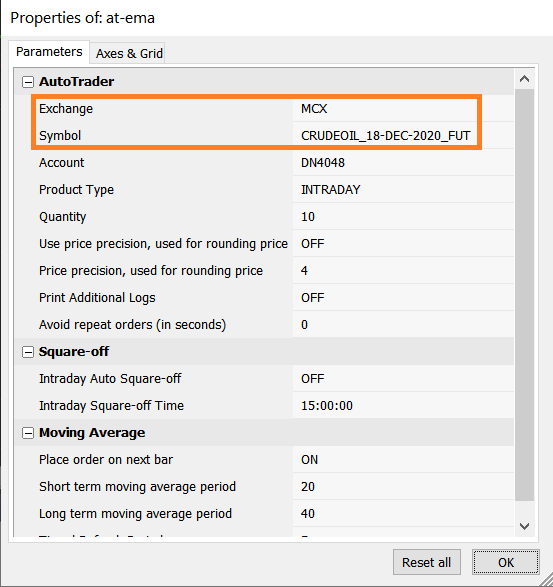
Amibroker Chart Parameters – Derivatives
Write the code with AI
You can have an AI coding assistant (ChatGPT, Claude, Gemini or Copilot) write your AFL for you. Many programmers now start this way, and it is much faster than a blank page. It only works well if the AI reads our documentation first. Without it, the AI guesses function names that look right and then fail.
- Give it our AmiBroker file first: stocksdeveloper.in/ai/trading-api/amibroker.txt. It has every API call with AmiBroker examples, and nothing from other languages to mix up. If your tool cannot open links, open the file yourself, save it, and attach it to the chat.
- Then send a prompt like this one. Replace the parts in CAPITALS.
Read this file first: https://stocksdeveloper.in/ai/trading-api/amibroker.txt
It is the official reference for the AutoTrader Web AmiBroker library.
Use only the functions, parameters and values it defines.

Write an AmiBroker AFL that DESCRIBE YOUR RULES HERE, and places the
orders through the library. Use #include <autotrader-v2.afl>.
My account is MY_ACCOUNT. Do not put any API key in the code.
The library I installed already has it.

Then check your code line by line against the reference, and list
anything you were not sure about instead of guessing it.- Test it before real money. Run the connection test first. Then try your AFL on one chart, with the smallest quantity, in one account only.
Never paste your API key into an AI chat. Your key is already inside the library files you downloaded, so never attach those files to a chat either. The AI only needs our documentation file, not your library.
Build with AI has more prompts, the mistakes these tools make, and what to check before you trade with the result.
Sample Strategies
Sample strategies are available under “Formulas\AutoTraderWeb”. Each one comes twice, side by side: the original file is version 1, and the file with -v2 in its name is the version 2 copy of the same strategy.
Check your setup first
Before you trade with the library, run Formulas\AutoTraderWeb\General\at-connection-test-v2.afl. Apply it to any chart, right-click the chart, choose Parameters, put your pseudo account name in Account, and press RUN THE TEST NOW.
It reads your margins, holdings, positions and orders and shows them on the chart. It places nothing. If it shows your account, the library is installed correctly and your key works. If it comes back empty, fix that before going any further.
Button Trading
Many sample button trading AFLs are available under “Formulas\AutoTraderWeb\Buttons”. We recommend you read and understand the AFL code before using them.
A detailed guide on button trading is available on AmiBroker Multi-Account Button Trading.
Scanner
The most important thing to remember is to use the Name() function to get the scanner symbol. Do not use the AT_SYMBOL parameter defined by our library.
You can map your datafeed provider’s symbol to AutoTrader Web’s symbol using a CSV file. You can also trade a different quantity per scanner symbol by mapping the quantity in a CSV file.
Look for the sample AutoTraderWeb\General\at-supertrend-scanner.afl. You can enable CSV files and set the file path in the chart parameters as shown below.
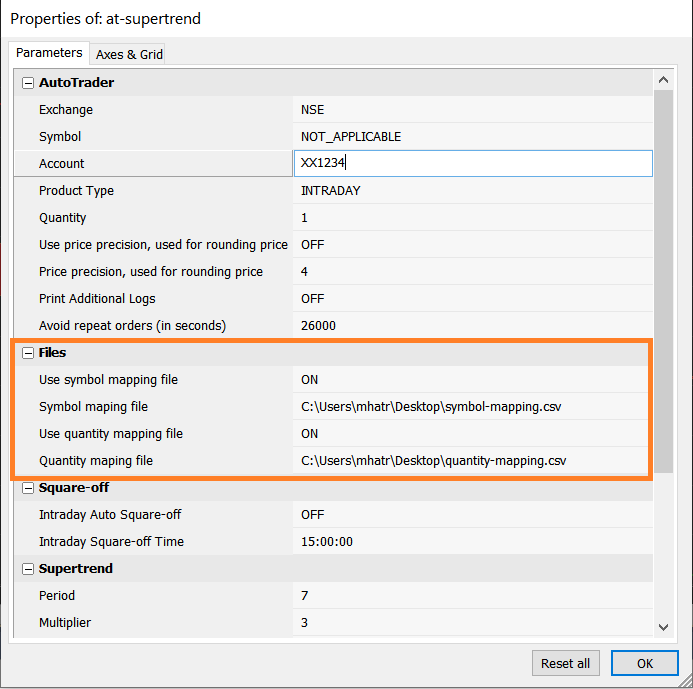
AmiBroker Scanner Parameters
Sample “symbol-mapping.csv”
- Column 1: Datafeed provider symbol
- Column 2: AutoTrader Web’s broker independent symbol
- Give a comma (,) at the end of each line
- See sample entries below, copy them and paste into a CSV file
BANKNIFTY-I,BANKNIFTY_24-SEP-2020_FUT,
BANKNIFTY-II,BANKNIFTY_26-NOV-2020_FUT,
NIFTY-I,NIFTY_24-SEP-2020_FUT,
Sample “quantity-mapping.csv”
- Column 1: Datafeed provider symbol
- Column 2: Quantity for the symbol
- Give a comma (,) at the end of each line
- See sample entries below, copy them and paste into a CSV file
BANKNIFTY-I,50,
BANKNIFTY-II,25,
NIFTY-I,75,
Trading in Multiple Accounts
There are two approaches to trading into multiple accounts. You can read about them in Trading Strategies For Multiple Accounts.
Approach 1: One Strategy Instance Per Account
To trade in multiple accounts in AmiBroker, run multiple charts or scanners, with one chart/scanner per account.
Approach 2: One Strategy for All Accounts
A single strategy runs across multiple accounts. We have already provided multi-account trading sample AFLs in our library. See the screenshots below.
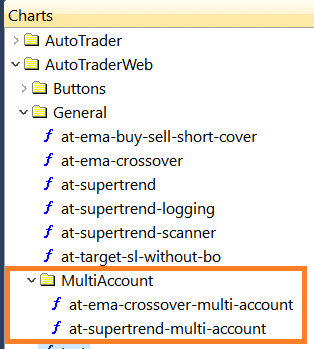
Multi-account trading AFLs

Set multiple account names in chart parameters
Many charts on the same account share one copy of your portfolio data, so ten charts do not make ten requests.
Place Order on Next Candle or Bar
This feature handles a specific scenario. Sometimes you will see short lived signals. A short lived signal is one that appears on a bar or candle and disappears by the time the bar or candle is complete.
You can avoid this problem by placing the order on the Next Bar or Candle. We have added this feature in our sample AFLs, and you can set it to ON if you need it. See the screenshot below.
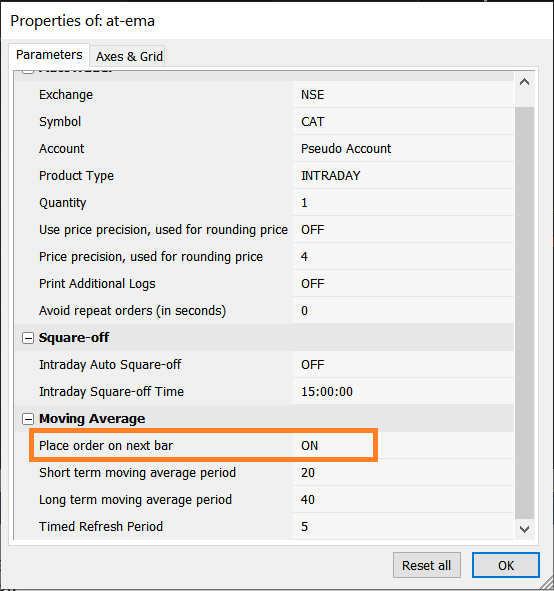
Place order on next Bar or Candle
Debug
A simple way to debug AFL code is to use the _TRACE() function and observe the TRACE logs. First, set up your AmiBroker to view logs.
- Increase _TRACE() output to max (5000 lines) (see screenshot below)
- Bring up the log window (AmiBroker Menu: Window -> Log)
- Go to the Trace tab and enable both Internal & External output (see screenshot below)
- Enable the switch to print additional logs in the parameters window (see screenshot below)
To see every request and reply the library makes, set AT_HTTP_DEBUG to True in “Formulas\Include\autotrader-http-config.afl”. It never prints your API key. Turn it off again once things are working — it is noisy.
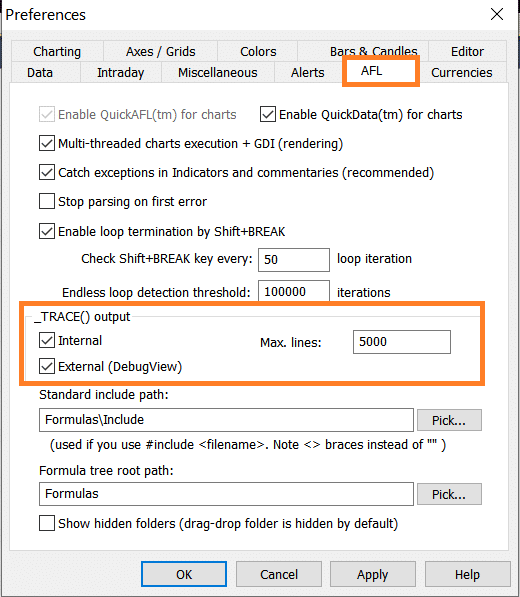
Trace output max lines
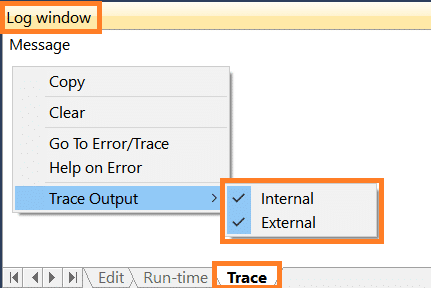
Trace enable internal and external output
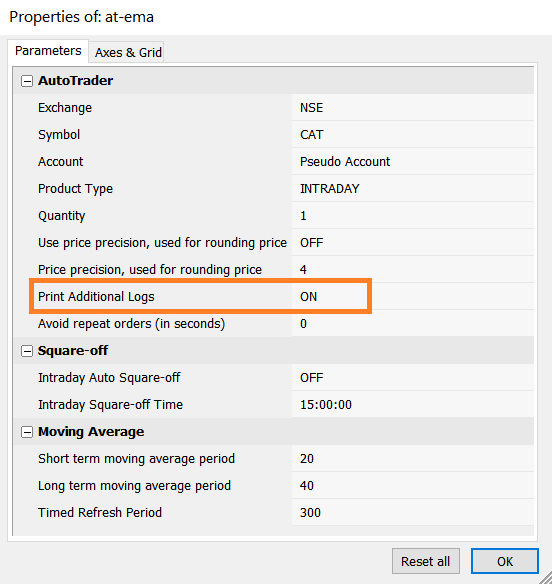
Print additional logs parameter
Logging
Logging helps you understand how your strategy works during live market hours. It also helps when investigating issues. It is similar to the _TRACE function above, but has more advantages: there is no limit on the file length, and the logs are kept even after AmiBroker is closed.
You can configure file based logging in the chart parameters.
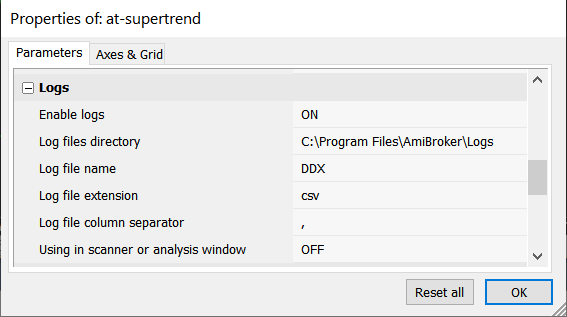
AmiBroker Logging Library Parameters
Find out how many requests you make
Version 2 talks to AutoTrader Web, so every get...() call can become a request. Version 1 read a file that the Desktop Client had already written, which was not a request. Your strategy code is the same, but what it does underneath is not. This is why a strategy that was fine on version 1 can start hitting API rate limits after you move it.
So the library writes down every request it makes. One file per day, shared by every chart, inside the Logs folder of your AmiBroker folder:
autotrader-api-YYYY-MM-DD.csvOpen it in Excel. Each line is one call:
| Column | What it tells you |
|---|---|
TIMESTAMP | Date and time, to the millisecond |
ELAPSED_MS | Milliseconds since AmiBroker started. Subtract two of these to measure a rate |
EVENT | READ for portfolio data, COMMAND for placing, changing, cancelling or squaring off |
MODE | chart, scan, explore or backtest |
CHART | Which chart pane it came from |
SYMBOL | Which symbol that pane was on |
ACCOUNT | Which account the request was counted against |
TARGET | What was asked for, such as orders.STATUS or PLACE_ORDER |
SERVED_BY | NETWORK means a request was sent. CACHE and BUSY cost you nothing |
OUTCOME | What came back |
DURATION_MS | How long the server took |
DETAIL | Row count, order id, or the reason it failed |
To count your requests, count the lines that say NETWORK. Nothing else in the file is a request.
Two settings control this, both in Formulas\Include\autotrader-http-config.afl:
AT_LOGis on already. It writes only the requests, which is a few lines per account per minute even from a busy chart.AT_LOG_CALLSis off. Turn it on and the library also writes the calls it answered from its own copy of the data, so you can see which of your calls are causing the requests. Turn it off again afterwards. On a scan over hundreds of symbols it writes a great many lines and will slow the scan down.
If the count is higher than you expect, raise AT_TTL_ORDERS and AT_TTL_POSITIONS in the same file. Lowering them does not get you fresher data.
The file never contains your API key.
An Exploration is the usual surprise. It runs your strategy once for every symbol in the list, so the MODE and SYMBOL columns are often enough on their own to explain a high count.
Additional Information
You can find solutions to common issues in the knowledgebase.
Also be aware of this AmiBroker issue. Make sure you use the RequestTimedRefresh() function as shown in the samples provided.
Portfolio summary functions
The portfolio summary functions — getPortfolioMtm, getPortfolioPnl, and the position and order counts — are not part of this library. Use the position and order functions instead. For example, add up getPositionMtm for the positions you care about.
Older AmiBroker versions
This library needs AmiBroker 6.30 or newer. If you are on AmiBroker 5.8 to 6.29 and cannot upgrade, use version 1 of the library with our Desktop Client.
The Desktop Client is a small app that runs on your computer. AmiBroker before 6.30 cannot send web requests on its own, so the Desktop Client sends your orders for it.
You only need this on AmiBroker 5.8 to 6.29. On AmiBroker 6.30 or newer, do not install the Desktop Client. Use version 2, as described above.
- Download the Desktop Client and start it.
- On its Settings tab, set your Secret API Key.
- Next to Amibroker Library:, click Install and choose your AmiBroker folder, the one that holds Broker.exe. Do not use Amibroker Library (no client) — that one is for AmiBroker 6.30 or newer.
- At the top of your strategy, use
#include <autotrader.afl>. Use the sample files without-v2in their name. - Keep the Desktop Client running while you trade, and click Monitor each trading day.
Every function has the same name and arguments in both versions. So when you upgrade to AmiBroker 6.30 or newer, moving to version 2 is one line: the include.
AmiBroker older than 5.8 is not supported by either version. Upgrading AmiBroker is the simplest fix.
Frequently asked questions
Do I need to install anything besides AmiBroker?▾
Not on AmiBroker 6.30 or newer. The library talks to AutoTrader Web over the internet from inside AmiBroker: you download one zip file, extract it into your AmiBroker folder, and add one line to your strategy. Only AmiBroker 5.8 to 6.29 needs something extra, our Desktop Client.
What does placeOrder give me back?▾
Your broker's own order id. It is the same id you see in your broker order book, and it is what you pass to getOrderStatus, modifyOrder and cancelOrder.
My order did not go through. Where do I look?▾
Turn on AT_HTTP_DEBUG in autotrader-http-config.afl and watch the AmiBroker trace window. The library prints the reason for every failed request, including a wrong API key.
I placed an order but getOrderStatus comes back blank. Did it fail?▾
Most likely not. An order takes a few seconds to show its new state, so asking for it in the same breath as placing it reads the values from before. Read it on a later bar or a few seconds later, and check your order book, which is always the final word.
My strategy worked on version 1 and now says too many requests. What changed?▾
Your code did not change, but what it does underneath did. On version 1 a get...() call read a file the Desktop Client had already written. On version 2 it asks AutoTrader Web, so it can be a real request. The library writes every request it makes to a file, one per day, in the Logs folder of your AmiBroker folder. Open it in Excel and count the lines that say NETWORK. If the count is high, raise AT_TTL_ORDERS and AT_TTL_POSITIONS in autotrader-http-config.afl, and close charts you are not using.
Which AmiBroker version do you test the library on?▾
We test it on AmiBroker 6.93, 64-bit. Version 2 of the library needs AmiBroker 6.30 or newer. On AmiBroker 5.8 to 6.29, use version 1 with our Desktop Client. If something does not work on your version, contact us and tell us your AmiBroker version.
Next steps
Thanks for the feedback. Still stuck? Contact support.
Last updated 8 October 2026
