MetaTrader Library
Place orders from your MT4 or MT5 strategy into one or many accounts, using our ready-made library.
Download the MetaTrader library from your AutoTrader Web account, extract it into your MetaTrader data folder, allow our address in MetaTrader's options, and include autotrader-http.mqh in your strategy. Your API key is already inside the download. The library works with both MT4 and MT5 and can trade in multiple accounts.
What it is
The MetaTrader library lets you place orders from your MT4 or MT5 strategy into single or multiple accounts. It works with MetaTrader 5, and with MetaTrader 4 from build 600.
How it connects
MetaTrader talks to AutoTrader Web directly, over the internet. There is no second program to install and nothing that has to stay running in the background.
Before you begin
Have these ready first:
- MetaTrader installed on your computer — MT5, or MT4 build 600 or newer.
- An AutoTrader Web account.
- At least one broker account added as a pseudo account.
If you face any problem, contact the support team for help.
Installation
- Sign in to your account at webx.stocksdeveloper.in
- Go to Tools → Library
- Click Download on the MetaTrader card, and enter your AutoTrader password when asked
- Save the zip file
- In MetaTrader, open File → Open Data Folder
- Extract the zip into the MQL5 folder — MQL4 if you are on MetaTrader 4
The download already has your API key inside it. That is why the page asks for your password before it gives you the file.
Keep this file to yourself. Anyone who has it can place orders in your accounts. Do not e-mail it, and never attach it to a support request or a forum post.
Allow our address in MetaTrader
This step is not optional. MetaTrader refuses to contact any address that is not on its own allowed list, and it does so silently — your strategy runs, and no order is ever sent.
- In MetaTrader, open Tools → Options
- Go to the Expert Advisors tab
- Tick Allow WebRequest for listed URL
- Add this address:
https://apix.stocksdeveloper.in- Click OK
If you skip this, every request fails with error 4014. The library says so in plain words in the Experts tab the first time it happens.
Two rules about where your strategy runs
- Use an Expert Advisor or a Script, not a custom indicator. MetaTrader does not allow web requests from an indicator.
- The Strategy Tester cannot make web requests. A back-test therefore places no orders and reads no portfolio. That is the safe outcome — a back-test can never send real orders by mistake.
The library checks both and tells you once, in the Experts tab, rather than failing quietly on every call.
Where your key lives
Your key sits in one file: Include\autotrader-http-config.mqh. If you ever need to change it, edit that file and recompile your strategy.
The same file holds a few optional settings, such as how long the library re-uses portfolio data before asking again, and a switch to print every request and reply while you are setting things up.
Migration
If you are migrating from our previous generation AutoTrader system, note that the API functions have changed. The most notable change is the addition of the Pseudo Account, an extra parameter in all functions.
Integration
Once the library is installed, the next step is to integrate it into your trading strategy.
Code
As with any other library, to use its functions in your strategy you must include it at the top of your strategy code:
#include <autotrader-http.mqh>That’s about it. Now you are ready to use the API functions provided in the library.
It is worth calling autoTraderReady() once in OnInit. It checks that your key is set and that this program is allowed to make web requests, and it prints exactly what is missing:
int OnInit()
{
	if(!autoTraderReady()) {
		return(INIT_FAILED);
	}

	return(INIT_SUCCEEDED);
}
Regular Order
string id = placeOrder(AT_ACCOUNT,
	AT_EXCHANGE, AT_SYMBOL, SELL, LIMIT, INTRADAY, 1,
	192.44, 0.0, true);
Bracket Order
string id = placeBracketOrder(AT_ACCOUNT,
	AT_EXCHANGE, AT_SYMBOL, BUY, LIMIT, 1,
	192, 0.0, 1, 1, 0, true);
Cover Order
string id = placeCoverOrder(AT_ACCOUNT,
	AT_EXCHANGE, AT_SYMBOL, BUY, LIMIT, 1,
	192, 190.5, true);
What placeOrder gives you back
placeOrder waits for your broker’s answer and returns your broker’s own order id. It is the same id you see in your broker order book, and it is what you pass to getOrderStatus, modifyOrder and cancelOrder.
There are three possible answers, and it is worth handling all three:
string orderId = placeOrder(AT_ACCOUNT,
	AT_EXCHANGE, AT_SYMBOL, BUY, MARKET, INTRADAY, 1,
	0, 0, true);

if(orderId == AT_UNCONFIRMED) {
	// The order reached your broker and your broker did not confirm it.
	// It may be live. Do NOT send it again -- check your order book.
	Print("Order sent but not confirmed. Check the order book.");
} else if(orderId == "") {
	// The order was not placed. Safe to try again if you want to.
	Print("Order was not placed.");
} else {
	// Placed. This is your broker's order id.
	Print("Order placed: ", orderId);
}
The middle case is rare, but it is the one that matters. If you treat a blank answer and an unconfirmed answer the same way, a strategy can place the same order twice.
Cancel Order
string orderId = placeOrder(AT_ACCOUNT,
	AT_EXCHANGE, AT_SYMBOL, SELL, LIMIT, INTRADAY, 1,
	192.44, 0.0, true);

// You can even store the orderId
// in a variable of your own

// Somewhere later in your code,
// when you want to cancel this order

cancelOrder(AT_ACCOUNT, orderId);
Reading your portfolio by column name
Alongside the getHoldingQuantity() / getPositionNetQuantity() / getOrderStatus() functions, which have not changed, you can pick a row out of your portfolio and then read any field on it by name.
Four functions find a row:
| Function | Finds |
|---|---|
atFindHolding(account, exchange, symbol) | one holding |
atFindPosition(account, category, type, exchange, symbol) | one position |
atFindOrder(account, orderId) | one order |
atFindMargin(account, category) | EQUITY, COMMODITY or ALL |
atFound() tells you whether the row exists. This matters: a holding you do not have and a lookup that went wrong both read as 0, and only atFound() separates them.
atText() and atNum() then read a field by name. Names are the column names your data already uses, and upper or lower case both work — QUANTITY, PNL, LTP, AVGPRICE, ISIN, STATUS, TRADETYPE, NETQUANTITY and so on. Ask for a name that does not exist and you get a blank, never a different field by mistake.
string h = atFindHolding(AT_ACCOUNT,
	EnumToString(AT_EXCHANGE), AT_SYMBOL);

if(atFound(h)) {
	Print("Quantity: ", atText(h, "QUANTITY"));
	Print("Average price: ", atText(h, "AVGPRICE"));
	Print("Profit or loss: ", atNum(h, "PNL"));
}
You can also go through a whole portfolio without knowing the symbols in advance, which the older functions cannot do:
for(int i = 1; i <= atPositionCount(AT_ACCOUNT); i++)
{
	string p = atPositionAt(AT_ACCOUNT, i);

	Print(atText(p, "INDEPENDENTSYMBOL"), " ",
		atText(p, "NETQUANTITY"));
}
atHoldingCount() / atHoldingAt() and atOrderCount() / atOrderAt() work the same way.
Rows are numbered from 1, not from 0. Start the loop at
1and end it at<= count, exactly as above. A loop writtenfor(int i = 0; i < count; i++)reads nothing for the first row and stops one row short. If you ask for a row that does not exist, you get an empty row and the library prints an error in the Experts tab (SD-ERR-MT-ROW). The error names the row you asked for and how many rows there are, so check the Experts tab if a loop seems to miss data.
API Functions
All API functions are available inside Include\autotrader-http-api.mqh. Do NOT modify this file.
Note: A detailed explanation, with examples, is provided for each function in the API documentation.
Parameters
The library defines certain parameters that you can set in the chart parameters window. They are listed below.
| Parameter | Description |
|---|---|
AT_ACCOUNT | Pseudo account |
AT_EXCHANGE | Instrument’s exchange |
AT_SYMBOL | Instrument’s symbol |
AT_PRODUCT_TYPE | Default product type |
AT_QUANTITY | Default quantity |
AT_PRICE_PRECISION | Price precision for rounding |
AT_DEBUG | Print additional logs |
AT_AVOID_REPEAT_ORDER_DELAY | Avoid repeat order delay (in seconds) |
A broker independent instrument’s Exchange & Symbol can be looked up using this global instruments search tool.
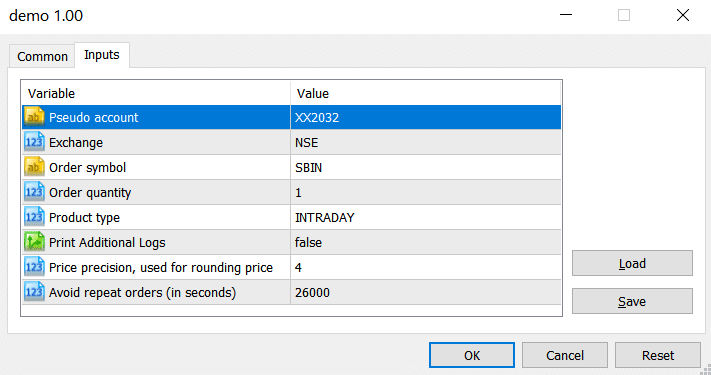
MetaTrader Chart Parameters
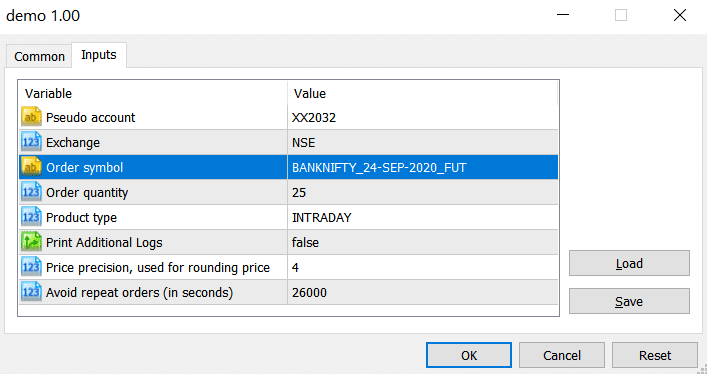
MetaTrader Chart Parameters – Derivatives
Write the code with AI
You can have an AI coding assistant (ChatGPT, Claude, Gemini or Copilot) write your Expert Advisor or script for you. Many programmers now start this way, and it is much faster than a blank page. It only works well if the AI reads our documentation first. Without it, the AI guesses function names that look right and then fail.
- Give it our MetaTrader file first: stocksdeveloper.in/ai/trading-api/metatrader.txt. It has every API call with MetaTrader examples, and nothing from other languages to mix up. If your tool cannot open links, open the file yourself, save it, and attach it to the chat.
- Then send a prompt like this one. Replace the parts in CAPITALS.
Read this file first: https://stocksdeveloper.in/ai/trading-api/metatrader.txt
It is the official reference for the AutoTrader Web MetaTrader library.
Use only the functions, parameters and values it defines.

Write an MQL5 (or MQL4) Expert Advisor that DESCRIBE YOUR RULES HERE,
and places the orders through the library.
Use #include <autotrader-http.mqh>.
My account is MY_ACCOUNT. Do not put any API key in the code.
The library I installed already has it.

Then check your code line by line against the reference, and list
anything you were not sure about instead of guessing it.- Test it before real money. Run it once with the smallest quantity, in one account only.
Never paste your API key into an AI chat. Your key is already inside the library files you downloaded, so never attach those files to a chat either. The AI only needs our documentation file, not your library.
Build with AI has more prompts, the mistakes these tools make, and what to check before you trade with the result.
Logs
The library prints what it is doing in the Experts tab. To see every request and reply, set AT_HTTP_DEBUG to true in Include\autotrader-http-config.mqh. It never prints your API key. Turn it off again once things are working — it is noisy.

MetaTrader Logs
Trading in Multiple Accounts
There are two approaches to trade into multiple accounts. You can read about them in Trading Strategies For Multiple Accounts.
Approach 1: One Strategy Instance Per Account
To trade in multiple accounts, you run multiple charts or scanners, with one chart or scanner per account.
Approach 2: One Strategy for All Accounts
All the API functions take the account number as a parameter. So instead of using just a single AT_ACCOUNT chart parameter, you can hard-code the account in your code. Here is a sample:
// Place order in ACC1
placeOrder("ACC1", AT_EXCHANGE, AT_SYMBOL, BUY, MARKET,
	AT_PRODUCT_TYPE, AT_QUANTITY, 0, defaultTriggerPrice(), false);

// Place order in ACC2
placeOrder("ACC2", AT_EXCHANGE, AT_SYMBOL, BUY, MARKET,
	AT_PRODUCT_TYPE, 0, buyPrice, defaultTriggerPrice(), false);
Portfolio summary functions
The portfolio summary functions — getPortfolioMtm, getPortfolioPnl, and the position and order counts — are not part of this library. Use the position and order functions instead. For example, add up getPositionMtm for the positions you care about.
Holdings
The holdings functions now work. In the older library they always returned a blank value, because the library looked for your symbol in the wrong place. Nothing in your strategy needs to change — getHoldingQuantity, getHoldingAvgPrice and the rest simply return real numbers now.
Frequently asked questions
My orders do nothing and the log shows error 4014. What is wrong?▾
MetaTrader is blocking the request. Open Tools, then Options, then Expert Advisors, tick 'Allow WebRequest for listed URL', and add https://apix.stocksdeveloper.in to the list. Nothing leaves MetaTrader until you do this.
Can I use the library in a custom indicator?▾
No. MetaTrader does not allow web requests from an indicator. Put your strategy in an Expert Advisor or a Script. The library tells you this once in the Experts tab if you get it wrong.
Why does nothing happen in the Strategy Tester?▾
The Strategy Tester cannot make web requests, so a back-test places no orders and reads no portfolio. This is deliberate — it means a back-test can never send real orders by mistake.
Can I read any field from my portfolio, or only quantity and status?▾
Any field. Use atFindHolding, atFindPosition, atFindOrder or atFindMargin to pick a row, then atText or atNum to read a field by its column name, such as QUANTITY, AVGPRICE, PNL or STATUS. Check atFound first: a holding you do not have and a lookup that went wrong both read as 0, and only atFound tells them apart.
Next steps
Thanks for the feedback. Still stuck? Contact support.
Last updated 8 October 2026
