Desktop Client (AmiBroker 5.8 to 6.29)
A small app that sends orders for AmiBroker 5.8 to 6.29. Nobody else needs it.
- Only for AmiBroker 5.8 to 6.29. Those versions cannot send web requests, so this small app sends your orders for them.
- Everyone else does not need it. AmiBroker 6.30 or newer, MetaTrader, Excel and our code libraries connect directly. Do not install it.
- No install step. Download it, run it, set your API key, and click Monitor each trading day.
Download
Current version: 7.2.0. There is no install step. Save the file on your computer and run it directly.
Do you need this? Only if you use AmiBroker 5.8 to 6.29. If you use AmiBroker 6.30 or newer, MetaTrader, Excel, or our code libraries, you do not need the Desktop Client. Use the AmiBroker library or your tool’s own library instead.
Windows backup link: second download link. Already using the client? See how to upgrade.
You do not need an account login to download the client. Setup steps for each system are in how to install below.
What it is
The Desktop Client is a small app that runs on your computer. It exists for one reason: AmiBroker 5.8 to 6.29 cannot send web requests from AFL.
So your strategy writes its orders to files on your computer. The Desktop Client reads those files and sends the orders to AutoTrader Web, which sends them on to your broker.
AmiBroker 6.30 or newer can send web requests by itself. It uses version 2 of the library and does not need this app. MetaTrader, Excel and our code libraries connect directly too.
Demo video
How to install?
Get the file from the download section at the top of this page. There is no install step. Keep it on your desktop and run it directly.
Java
The client needs Java 17 or newer. On Windows, the client asks you to install Java if it is not already on your computer.
If you need to install Java yourself, get Java 17 from Adoptium Temurin releases.
Windows
Use the Download for Windows button in the download section. Save the .exe file and run it directly. If the first link does not work, use the backup link given there.
Mac
Use the Download for Mac button in the download section, then follow these steps.
1. Download and extract
- Download the AutoTrader-Mac.zip file.
- Double-click the zip file to extract it. You will see an application named AutoTrader (with the monitor icon).
2. Move to Applications
- Drag the AutoTrader app into your Applications folder. This is important for the next step to work correctly.
3. Grant security permissions
Because this is an independent application, macOS needs a one-time permission fix to allow it to run:
- Open the Terminal app (press
Command + Space, type “Terminal”, and hit Enter). - Copy and paste the following command into the window:
sudo xattr -rd com.apple.quarantine /Applications/AutoTrader.app- Press Enter.
- It will ask for your Mac password. Type it in and press Enter again. (Note: you won’t see any characters moving while you type. This is a normal security feature.)
4. Launch the app
- You can now open AutoTrader directly from your Applications folder or Launchpad, like any other app.
- You can safely delete the original
AutoTrader-Mac.zipfile.
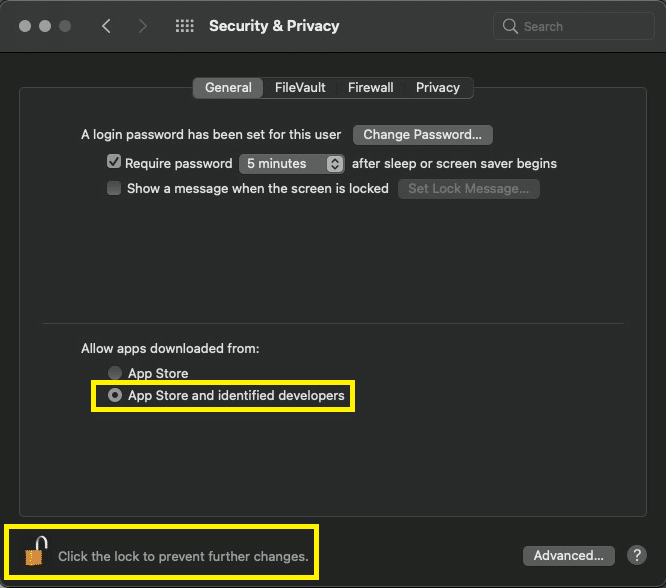
If macOS still blocks the app, allow it once in System Preferences → Security & Privacy → General: click the lock icon, then allow apps downloaded from App Store & identified developers.
Linux and other systems
Use the Download for Linux button in the download section. The file is a self-executing JAR, so you can run it directly. It needs Java 17 or newer.
If it does not start, run it from a terminal:
java -jar at-desktop-7.2.0.jarHow to upgrade?
Once the client is installed, it shows a message at the bottom of the screen whenever a new version is available.
We strongly recommend upgrading when a new version is available. The steps are:
- Delete the existing client.
- Get the latest version from the download section at the top of this page.
- Just start using it. The client automatically loads its settings, which are saved on your computer.
Set up AmiBroker
This is a one-time setup.
- Start the Desktop Client and open the Settings tab.
- Next to Secret API Key, click Change. Paste your API key from AutoTrader Web (Settings → Security) and click Save.
- Next to Amibroker Library:, click Install. Choose your AmiBroker folder, the one that holds Broker.exe, and click Install Here.
- At the top of your strategy, use
#include <autotrader.afl>. Use the sample files without-v2in their name.
Use the right install button. Amibroker Library: sets the library up for the Desktop Client. Amibroker Library (no client) is for AmiBroker 6.30 or newer and does not use this app at all.
The install copies the library into your AmiBroker Formulas folder and replaces the library’s own files there. Keep your own AFL files outside the Formulas\AutoTraderWeb folder.
If you change the Communication Folder later, click Install next to Amibroker Library: again, so the library uses the new folder.
When you upgrade to AmiBroker 6.30 or newer, you can stop using the Desktop Client. Download the library from Tools → Library in your account and change the include line to #include <autotrader-v2.afl>. Every function keeps the same name.
Daily use
Each trading day, when you start trading:
- Start the Desktop Client.
- Click the Monitor button.
This makes sure the client is listening to your strategy. To stop trading, click the Stop button on the Dashboard tab.
Settings
You can find the client’s settings on the Settings tab.
| Setting | What it does |
|---|---|
| Secret API Key | Used to connect to your account. Find this key in AutoTrader Web (Settings → Security). |
| AutoTrader Server | We have two servers. We recommend PRIMARY. If there is a problem with PRIMARY, we will tell users to switch to BACKUP. |
| Communication Folder | The folder where your strategy and the client exchange files. By default it is autotrader inside your user folder, for example C:\Users\<your-user>\autotrader. |
| Portfolio Read | Reads your live orders, positions and margins and writes them to files your strategy can read. Keep it OFF unless your strategy reads them. |
| Portfolio Read Interval (sec) | How often the portfolio is read. The system can override this value to stay within API limits. |
| Monitor on Startup | The client starts monitoring as soon as it opens. |
| Beep | You hear a beep whenever the client receives a new command. |
| Parallel Order Execution | Runs orders in parallel instead of one by one. This is faster when you trade in many accounts (see below). |
| Worker Thread Count | How many orders run in parallel. A higher count can speed up bulk orders across many accounts. |
| Amibroker Library | Installs version 1 of the AmiBroker library, set up for this client. Use this on AmiBroker 5.8 to 6.29. |
| Amibroker Library (no client) | Installs version 2 of the AmiBroker library with your API key, for AmiBroker 6.30 or newer. After this, you do not need the Desktop Client. |
| MetaTrader Library | Not needed. MetaTrader connects to AutoTrader Web directly. Download its library from Tools → Library in your account instead. |
About Parallel Order Execution: when the client receives several orders back-to-back, it runs them in parallel instead of one by one. This does not guarantee the orders run in the order they were received. Sometimes the order matters, for example an option strategy that needs orders placed one after another to avoid higher margins. In that case, turn this setting OFF.
Communication folder
Your strategy and the client talk through files in the Communication Folder.
input\commands.csv— your strategy writes its orders here. The client reads the file as soon as it changes.output\<account>-orders.csv,-positions.csv,-margins.csvand-summary.csv— the client writes your live portfolio here, one set of files per account. These files are written only when Portfolio Read is ON.
Logs
The client writes its logs to C:\Users\<your-user>\autotrader\logs.
Frequently asked questions
Do I need the Desktop Client?▾
Only if you use AmiBroker 5.8 to 6.29. Everything else connects to AutoTrader Web directly: AmiBroker 6.30 or newer, MetaTrader, Excel, Python, Java, C#, the HTTP API, TradingView and the web app. If you use any of those, do not install it.
I already use the Desktop Client with AmiBroker 6.30 or newer. Should I keep it?▾
You can stop using it. Download the AmiBroker library from Tools, then Library, in your account, and change the include line at the top of your strategy to autotrader-v2.afl. Every function keeps the same name, and nothing has to stay running in the background.
Where do I download the AutoTrader Desktop Client?▾
Use the download section at the top of this page. There are buttons for Windows, Mac and Linux, plus a backup link for Windows. The client needs no install step: save the file on your computer and run it directly.
Do I need to log in to download the Desktop Client?▾
No. The download links are open to everyone and need no account or login. If you see a login page, you have opened the AutoTrader Web sign-in page by mistake. Go back to this page and use the download buttons at the top.
How do I update the Desktop Client when a new version is available?▾
The client shows a message at the bottom of its screen when a new version is out. Delete the old client, download the latest one from this page, and run it. Your settings are saved on your computer and load automatically, so you do not need to set them up again.
Next steps
Thanks for the feedback. Still stuck? Contact support.
Last updated 11 September 2026
