Portfolio Management System (PMS)
Trade and manage hundreds of accounts by hand from one dashboard, with bulk copy, modify, cancel and square-off.
AutoTrader Web is a copy-trading and PMS tool that lets a portfolio manager trade and manage hundreds of trading accounts from one dashboard. Place one order and copy it into many accounts or account groups in a single click, then modify, cancel or square-off in bulk. It works from any device with a browser, and you can also automate it through our API libraries.
Demo videos
Watch the PMS workflow end to end — placing one order and copying it into many accounts:
What PMS is for
PMS (manual copy trading) lets a portfolio manager trade and manage hundreds of trading accounts from a single dashboard. You place an order once and copy it into many accounts or groups, so you do not need support staff and you avoid data-entry mistakes.
“Manual” here means you place the order yourself (rather than an algo doing it) — the copy across accounts is still automatic. You enter one order, click once, and it is placed in every account or group you selected. You never re-type it account by account.
This page explains the copy workflow. The one-time account setup and the monitoring screens are covered on their own pages, linked below.
If you are copying orders from an ALGO instead of placing them manually, use Master-Child copy trading instead. Not sure which one fits you? Read PMS vs Master-Child.
Before you start
PMS copy trading works once your accounts are set up. Do these one-time steps first:
- Register — create your AutoTrader Web account. See User Registration.
- Add your trading accounts — add each broker account you want to trade. See Trading Accounts.
- Nickname your accounts (optional) — give each account an easy-to-remember name. See Nicknames.
- Create group accounts (optional) — bundle accounts so you can trade many at once. See Group Accounts.
Copy an order across many accounts
The heart of PMS is the Trade tab: place one order and copy it into many accounts or groups in a single click. Navigate to the menu (Trading -> Portfolio) and click the Trade tab.
The system uses broker-independent trading symbols, so the same order works across brokers. A search button helps you find the right exchange and trading symbol.
Copy across multiple accounts
Place the exact same order in multiple trading accounts with a single click.
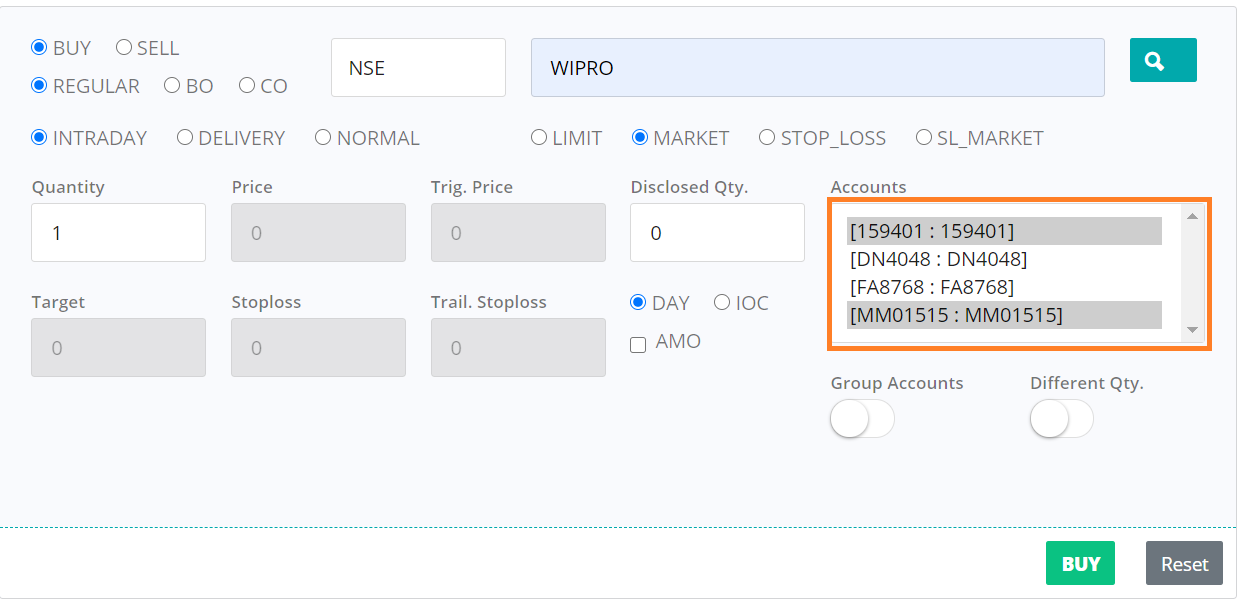
Copy order across multiple trading accounts
The order is copied to the accounts you selected. Select multiple accounts using Ctrl + click, Shift + click or Ctrl + a.
Also using master-child copy? Do not pick a master and its own child accounts together here.
- Copy trading also copies the master’s order into its children, so each child gets the order twice. The same happens if a group you pick holds both.
- The app now warns you before placing, and offers to remove the child accounts for you.
- To place by hand into many accounts, keep them out of a master-child setup, or turn copying off for that master. With master-child, place the order in the master only.
Copy across multiple accounts with different quantities
Place the same order in multiple accounts, but with a different quantity per account.
Note: Once a row is selected, you get an option to enter the quantity. The order is placed only in the accounts you selected.
Copy across multiple groups
Place the same order across multiple groups in one click. Remember, a group is a collection of trading accounts.
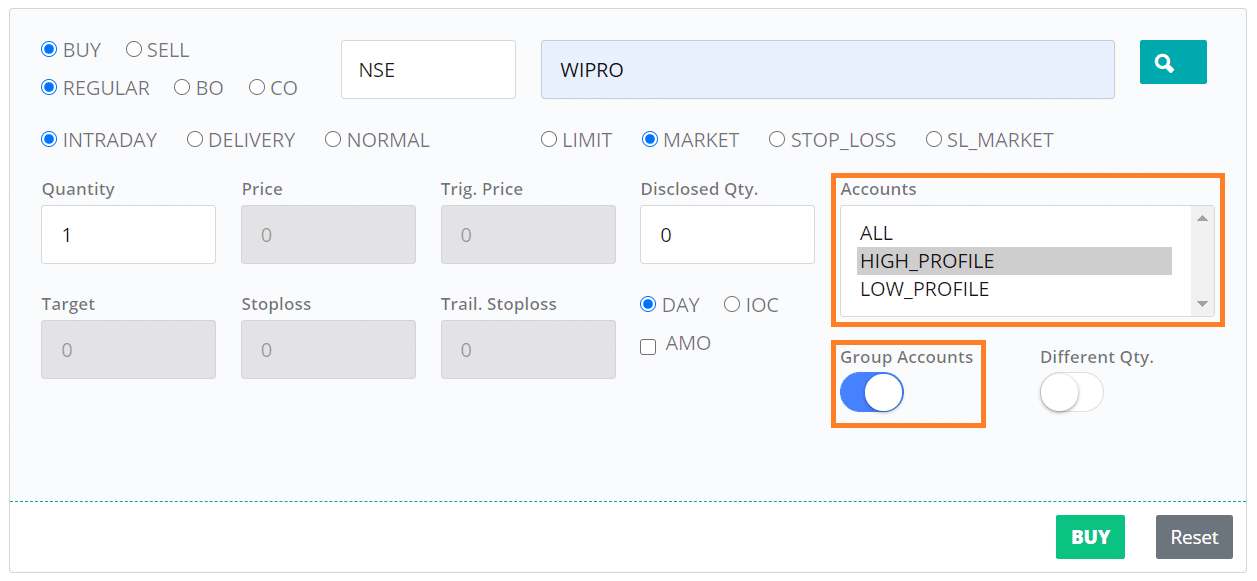
Copy orders across groups
The order is copied to every account in the selected groups. Select all or multiple groups using Ctrl + click, Shift + click or Ctrl + a.
Copy across multiple groups with different quantities
Same as above, but you can enter a different quantity for each group. Select a group’s row to enter its quantity. The order is placed only in the groups you selected.
See how fast your orders were placed
After you copy an order across accounts, the result window shows a Timing section. Expand it to see how long each broker took to respond, shown as a simple bar chart with the slowest order highlighted. This makes it easy to tell whether a delay was at one broker’s end. For details, see the Trade screen guide.
Copy speed and delay
PMS copy trading has almost no delay. Because you place the order yourself in our system, there is no wait for your broker to notify us about a new order — so copying starts immediately and the order goes out to all the accounts you selected together.
This is the main speed difference from Master-Child copy, which has to wait for your broker’s new-order notification and so can take a little longer — up to about 2 to 3 seconds for a few brokers (for most brokers it is still almost instant). In PMS, the only time taken is how fast each broker accepts the order, which you can see in the Timing section of the result window.
Your accounts are processed in parallel, not one after another. We do not send the order to your first account, wait for that broker to reply, and only then start the second. Every account you selected is worked on at the same time, so one slow broker does not hold up the accounts behind it. The same applies when you modify, cancel or square off across many accounts. See the speed and performance page for the measured numbers.
Quantity multiplier (group-level in PMS)
In PMS, the quantity multiplier is applied at the group level. You set a multiplier on each group account. When you copy an order across groups, the system sizes each group’s quantity automatically using that group’s multiplier — so you enter the quantity only once, instead of once per group.
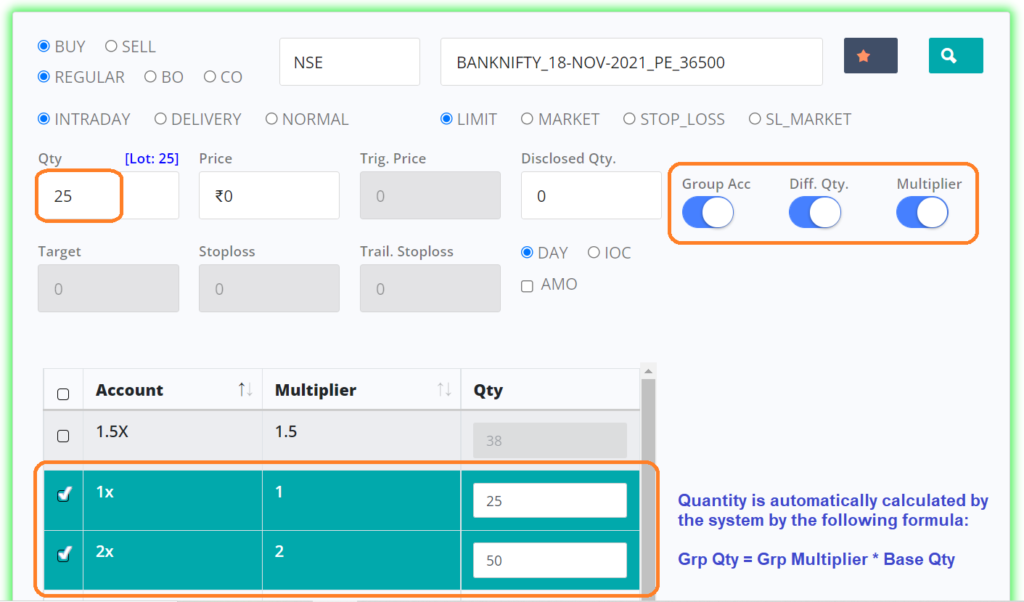
Copy order across groups with a quantity multiplier
While placing the order, tick the Use Group and Multiplier options. The system calculates each group’s quantity, but you can still change it before placing.
Note: For the exact calculation and lot-size rounding, see Quantity Multiplier.
Order splitting and the freeze limit
Freeze limit. The Indian stock exchanges cap the maximum quantity allowed in a single order. This cap is called the freeze limit and it is different for each contract. An order larger than the freeze limit is rejected by your broker.
Order splitting. To place a quantity beyond the freeze limit, turn on order splitting. The system automatically breaks a large order into smaller orders that each stay within the limit. In PMS you set the splitting method from the menu (Settings -> General):
| Mode | What it does |
|---|---|
| NO | The order is not split. |
| AUTO | Splits the order based on the freeze limit. |
| QTY | You set the slice (split) quantity yourself. |
In AUTO mode the split works the same way as in master-child copy: each order is filled up to the freeze limit and the last order carries the remainder (for example, with a freeze limit of 5,000, a quantity of 6,000 becomes two orders of 5,000 and 1,000). See how the split is calculated for details.
Each account is split on its own quantity. In PMS the quantity is worked out for each account first (using its multiplier), and only then split if that account’s own quantity crosses the freeze limit. So different accounts can place a different number of orders for the same trade: an account whose quantity stays within the limit places a single order, while a larger account is split into only as many orders as its own quantity needs. This keeps the order count — and the brokerage — to the minimum for each account. This is different from master-child copy, where each order from the master account is copied as-is, so a child with a small multiplier can place more orders than it needs. See PMS vs master-child.
Order types you can copy in PMS
PMS copies whatever order type you place, because you place it yourself in our terminal and pick the accounts in the same step.
| Order type | Copied in PMS? |
|---|---|
| Market and limit | Yes |
| Stop-loss (and trailing stop-loss) | Yes |
| After-market (AMO) | Yes |
| Bracket and cover | Yes, where your broker supports them |
| GTT (single and OCO) | Yes |
| Iceberg | Not needed — use order splitting above |
After-market orders (AMO). You do not have to place an AMO account by account. Place the AMO once, tick the accounts or groups you want, and it goes to all of them in a single action — exactly like a normal order. The next morning, once the AMO has been executed, you place the stop-loss the same way: once, across the same accounts.
This is different in master-child copy, which does not copy AMO, bracket, cover, GTT or iceberg orders. So if you trade with after-market orders, PMS is the method to use. See PMS vs master-child.
Monitor your accounts
PMS gives you one live dashboard for every account. Go to the menu (Trading -> Portfolio) and use the tabs to watch your accounts. A dropdown at the top filters by All Accounts, a group, or a single account.
- Summary — a combined view across all accounts.
- Positions — open positions, with single or bulk square-off.
- Orders — the order book, with bulk cancel and modify.
- Margins — available margins per account.
- Holdings — demat holdings, with buy or sell.
Investigate an issue
If an action did not work as expected — for example, a square-off that did not go through — open the Activity screen (Tools -> Activity), pick the date, and search the logs.
Conclusion
PMS lets you single-handedly do work that would otherwise need many people, while you keep full control and avoid data-entry mistakes. We keep adding features, deeper analytics and more broker support — please share your feedback to help improve it.
Frequently asked questions
Is there any delay in PMS copy trading?▾
No — PMS copy has almost no delay. You place the order directly in our system, so there is no wait for a broker to notify us about a new order (which is what master-child copy has to wait for). Copying starts immediately; the only time taken is how fast each broker accepts the order, which you can see in the Timing section of the result window.
Can I place an after-market order (AMO) in many accounts at once, or do I have to do each account one by one?▾
You place it once, not one by one. PMS copy supports after-market orders: enter the AMO in our terminal, tick the accounts or groups you want, and it goes to all of them in a single action, just like a normal order. The next morning, after the AMO has been executed, you place the stop-loss the same way — once, across the same accounts. Note that master-child copy is different: it does not copy AMO orders, so if you trade with after-market orders, use PMS copy.
Which is faster — PMS copy or master-child copy?▾
PMS copy is faster and has almost no delay, because you place the order yourself in our system. Master-child copy has to wait for your broker to notify us of a new order, so for a few brokers it can take up to about 2 to 3 seconds (for most brokers it is still almost instant). If speed matters most and you place orders by hand, use PMS. See PMS vs Master-Child to choose which fits you.
Next steps
Thanks for the feedback. Still stuck? Contact support.
Last updated 14 October 2026
