Upstox
Add and validate your Upstox account in AutoTrader Web.
To add an Upstox account in AutoTrader Web, you do three things. First, create an API app in the Upstox developer dashboard and copy the API Key and API Secret. Second, enable TOTP in your Upstox account and save the TOTP key. Third, in AutoTrader Web go to Accounts -> Trading Accounts, create an account with platform UPSTOX_API_AT_IPV6, enter your details, validate, and save.
This guide shows how to add an Upstox account in AutoTrader Web, the multi-account, multi-broker trading platform from Stocks Developer.
Demo video
Step 1 – Set up the Upstox API app
- Go to the Upstox API apps dashboard.
- Click the New App button.
- Enter the following details for the app:
- App Name: Stocks Developer
- Redirect Url:
https://webx.stocksdeveloper.in/auth/upstox - Postback Url:
https://apix.stocksdeveloper.in/postback/upstox - Static IP: see Static IP Setup below
- Keep other options blank (they are optional)
- Tick “I accept terms”
- Click Done
- Once your app is created, Upstox shows the following fields. You need them in Step 2:
- API Key
- API Secret
Step 2 – Enable TOTP
Note: if you already have your TOTP KEY saved, you can skip this step.
- Log in to Upstox.
- On the top right of the screen, open the menu (My Account -> My Account).
- In the My Account section, look for Time-based OTP (TOTP).
- If you have never enabled TOTP, click Enable TOTP.
- If you already have TOTP enabled, click Reset TOTP.
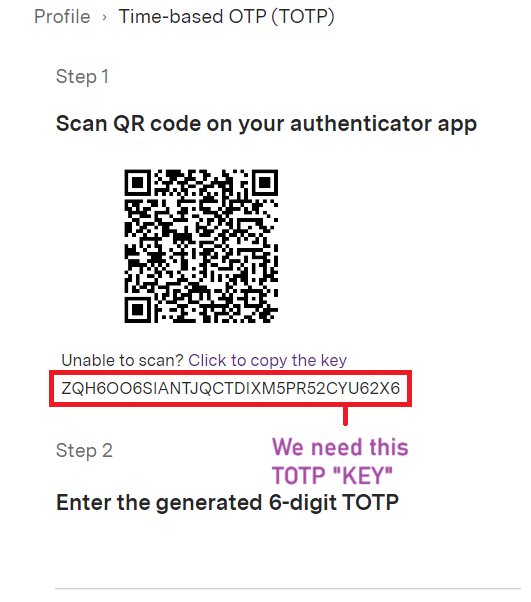
- Look for Unable to scan, click to copy the key (see screenshot below).
- Copy the key and save it in notepad. You need it in Step 3.
- Open any Authenticator app (such as Google Authenticator, Microsoft Authenticator, Authy, etc.) on your smartphone.
- Click “Scan a QR code” under the Add an Account section and allow access to the phone camera.
- Enter the 6-digit totp shown in the Google Authenticator app.
- Click ENABLE TOTP.
- Do not skip this last click. Copying the key alone is not enough. Until you click ENABLE TOTP, TOTP stays switched off at Upstox and your account will not connect. You will see the error Upstox refused to complete the login.
Step 3 – Add your account in AutoTrader Web
- Go to the AutoTrader Web menu (Accounts -> Trading Accounts).
- Click the Create button.
- Select Broker as Upstox.
- Select platform as UPSTOX_API_AT_IPV6.
- Enter the 6-digit PIN.
- Enter the TOTP Key.
- Enter the Phone number registered with your Upstox account.
- Enter the API Key.
- Enter the API Secret.
- Click the Validate button.
- On successful validation, click save to add the account.
That’s it. You have successfully added your Upstox account. Do not forget to read these known limitations.
Static IP Setup
The static IP setup is the same for every broker. Follow the full guide here:
Static IP Setup — set up a static IP or bring your own (BYOIP)
Bracket and cover orders on Upstox
Upstox does not offer a bracket order through the interface AutoTrader Web connects to, so you cannot place one on Upstox directly. You are not doing anything wrong if you went looking for it and could not find it — many Indian brokers withdrew bracket orders in 2020 and never brought them back.
You can place one anyway. An AutoTrader bracket order (AT_BO) attaches a target and a stop-loss to your Upstox order, with an optional trailing stop that follows the price in your favour and never moves back. An AutoTrader cover order (AT_CO) is the same thing with a stop-loss only. Your entry reaches Upstox as an ordinary intraday order, and AutoTrader Web watches the price and sends the closing order when your level is reached. On a stock option the entry goes as NORMAL instead, because Upstox does not accept intraday buys on stock options (why); it is still closed automatically the same day.
Place one from the order window, from your own code, or from a chart alert. It is intraday only, it does not give you the extra intraday margin some brokers give on their own bracket orders, and the position is squared off automatically a short while before the market closes.
Read the risk before you use it. A stop-loss decides when we try to exit — it does not decide the price you get. A sudden move can take the price straight past your level, so your loss can be larger than the stop-loss you set. The full explanation, and the one-time terms you agree to before your first one, are on Bracket & Cover Orders.
Frequently asked questions
Does AutoTrader Web support Upstox?▾
Yes. Upstox is fully supported. You can connect one or many Upstox accounts and monitor live P&L, holdings and positions, place and manage orders, and copy trade across all of them from one screen, on web or mobile.
Can I copy trade with Upstox?▾
Yes. You can copy trade with Upstox in two ways — PMS copy from our terminal and master-child copy in the background — across accounts and brokers, with per-account sizing. You set up and control everything.
Can I manage multiple Upstox accounts together?▾
Yes. Add as many Upstox accounts as you like and see consolidated P&L, holdings and positions live, and trade across all of them at once.
How much does it cost to use Upstox with AutoTrader Web?▾
AutoTrader Web is ₹295 to ₹495 per account per month, with all taxes included, and a free 1-month trial. Your account also needs a static IP — this is required for every broker, not optional. It is ₹100 per month for one IPv6 static IP — you get a primary and a backup address, and the backup is included free (taxes included) — or bring your own IP for free. If Upstox charges separately for API access, that fee is set by the broker.
Can I place a bracket order on Upstox?▾
Not a Upstox bracket order — Upstox does not offer one through the interface we connect to. You can place an AutoTrader bracket order (AT_BO) on your Upstox account instead. It attaches a target, a stop-loss and an optional trailing stop to the order, and it works because your entry goes to Upstox as an ordinary intraday order while AutoTrader Web watches your levels. It is intraday only and gives no extra margin, and a sudden price move can still take your exit past the level you set.
Next steps
Thanks for the feedback. Still stuck? Contact support.
Last updated 8 October 2026
