Sharekhan
Add and validate your Sharekhan account in AutoTrader Web.
To use a Sharekhan account with AutoTrader Web, do three things in order: enable TOTP on the Sharekhan site, create an API key on the Sharekhan Trading API portal, and add the account in AutoTrader Web under Accounts -> Trading Accounts using the SHAREKHAN_API platform. You will need a static IP for the API key, so generate it during setup.
This page lists the steps to connect your Sharekhan account. For other brokers, see the supported brokers list. For background on how accounts are added, see Trading Accounts.
Demo video
Step 1 – Enable TOTP
- Log in: Go to the Sharekhan website and log in with your credentials.
- Open security settings: Click your profile/menu button and select “Change My 2FA / TOTP”.
- Install an authenticator app: Make sure Google Authenticator or Microsoft Authenticator is installed on your smartphone.
- Scan the QR code: Click “Enable TOTP” and scan the QR code with your authenticator app. You will also see a TOTP Key copy option next to the QR code. Copy and save this TOTP Key — you will need it later.
- Activate: Type the 6-digit code from the app into the Sharekhan website and click “Enable”.
Step 2 – Create API Key
- Open the dashboard: Go to the official Sharekhan Trading API portal.
- Log in: Use your Sharekhan trading credentials and complete the 2FA authentication.
- Create a new app: Click the “Create New App” button.
- Select app type: Choose “Self App” (meant for individual users).
- Fill in the details (see screenshot below):
| Field | Value |
|---|---|
| App Name | Any name (e.g. “MyTradingApp”) |
| Redirect URL | https://webx.stocksdeveloper.in/auth/sharekhan |
| Postback URL | https://apix.stocksdeveloper.in/postback/sharekhan |
| Static IP | Get this in Step 3 below, then enter it here |
| Description | Any description |
- Submit: Click “Create” to generate your API Key and Secret.
Step 3 – Add Sharekhan Account
- Go to the AutoTrader Web menu (Accounts -> Trading Accounts).
- Click the Create button.
- Select Broker as Sharekhan.
- Select SHAREKHAN_API as the platform.
- Enter the following:
- Login ID (after this, click the Static IP button to get a static IP)
- If you do not know your Login ID, it is available under your Profile on Sharekhan (see screenshot below).
- Password
- Totp Key
- API Key (see screenshot below)
- API Secure Key (see screenshot below)
- Login ID (after this, click the Static IP button to get a static IP)
- Click Validate & Save.
Images
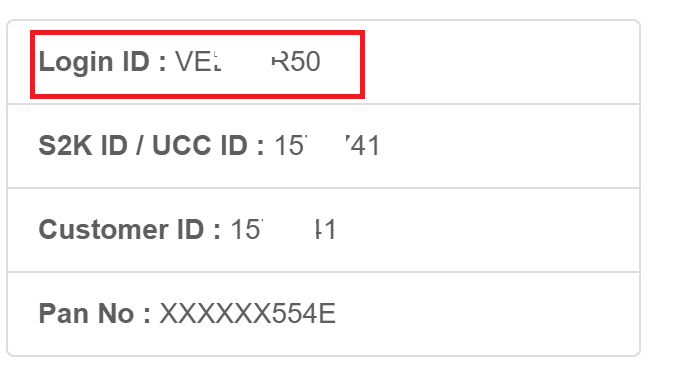
Sharekhan – Login ID, available under the profile section.
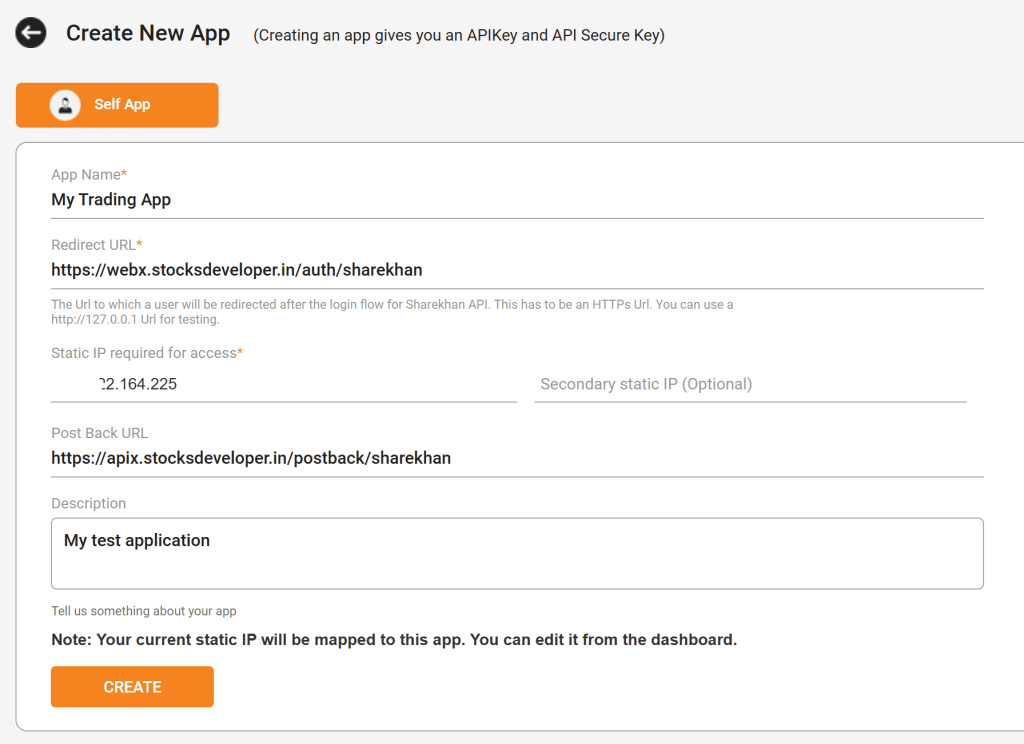
Sharekhan – Trading API setup.
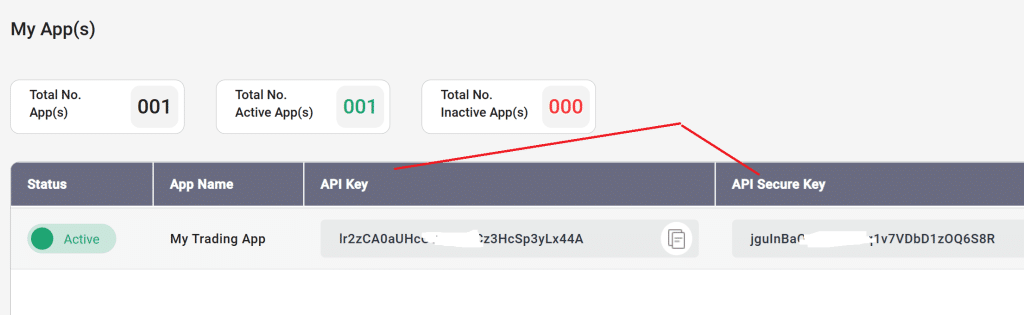
Sharekhan – API keys.
Static IP Setup
The static IP setup is the same for every broker. Follow the full guide here:
Static IP Setup — set up a static IP or bring your own (BYOIP)
Bracket and cover orders on Sharekhan
Sharekhan does not offer a bracket order through the interface AutoTrader Web connects to, so you cannot place one on Sharekhan directly. You are not doing anything wrong if you went looking for it and could not find it — many Indian brokers withdrew bracket orders in 2020 and never brought them back.
You can place one anyway. An AutoTrader bracket order (AT_BO) attaches a target and a stop-loss to your Sharekhan order, with an optional trailing stop that follows the price in your favour and never moves back. An AutoTrader cover order (AT_CO) is the same thing with a stop-loss only. Your entry reaches Sharekhan as an ordinary intraday order — the one thing every broker accepts — and AutoTrader Web watches the price and sends the closing order when your level is reached.
Place one from the order window, from your own code, or from a chart alert. It is intraday only, it does not give you the extra intraday margin some brokers give on their own bracket orders, and the position is squared off automatically a short while before the market closes.
Read the risk before you use it. A stop-loss decides when we try to exit — it does not decide the price you get. A sudden move can take the price straight past your level, so your loss can be larger than the stop-loss you set. The full explanation, and the one-time terms you agree to before your first one, are on Bracket & Cover Orders.
Frequently asked questions
Does AutoTrader Web support Sharekhan?▾
Yes. Sharekhan is fully supported. You can connect one or many Sharekhan accounts and monitor live P&L, holdings and positions, place and manage orders, and copy trade across all of them from one screen, on web or mobile.
Can I copy trade with Sharekhan?▾
Yes. You can copy trade with Sharekhan in two ways — PMS copy from our terminal and master-child copy in the background — across accounts and brokers, with per-account sizing. You set up and control everything.
Can I manage multiple Sharekhan accounts together?▾
Yes. Add as many Sharekhan accounts as you like and see consolidated P&L, holdings and positions live, and trade across all of them at once.
How much does it cost to use Sharekhan with AutoTrader Web?▾
AutoTrader Web is ₹295 to ₹495 per account per month, with all taxes included, and a free 1-month trial. Your account also needs a static IP — this is required for every broker, not optional. You can buy a Premium static IP (₹250 per month, faster and a little more reliable), take a Standard static IP (₹150 per month), or bring your own IP for free — all prices include tax. If Sharekhan charges separately for API access, that fee is set by the broker.
Can I place a bracket order on Sharekhan?▾
Not a Sharekhan bracket order — Sharekhan does not offer one through the interface we connect to. You can place an AutoTrader bracket order (AT_BO) on your Sharekhan account instead. It attaches a target, a stop-loss and an optional trailing stop to the order, and it works because your entry goes to Sharekhan as an ordinary intraday order while AutoTrader Web watches your levels. It is intraday only and gives no extra margin, and a sudden price move can still take your exit past the level you set.
Next steps
Thanks for the feedback. Still stuck? Contact support.
Last updated 8 October 2026
