Aliceblue
Add and validate your Aliceblue account in AutoTrader Web.
To add an Aliceblue account in AutoTrader Web, first enable TOTP and copy its secret key, then create an app on the Aliceblue developer portal to get your App Key and App Secret Key. Back in AutoTrader Web, choose the platform ALICE_API_V2_IPV6, enter your login details, App Key and App Secret Key, then validate and save.
This guide walks you through connecting an Aliceblue trading account so AutoTrader Web can place orders for you. The setup has three parts: enable TOTP, create an app, and add the account.
Demo video
Before you start
You need three things from Aliceblue:
- The secret TOTP key (from enabling TOTP).
- Your Aliceblue login id and password.
- An App Key and App Secret Key (created on the Aliceblue developer portal).
Step 1: Enable TOTP and copy the key
You need the secret TOTP key that Aliceblue gives you when you enable TOTP.
If you have already enabled TOTP, you may already have this key, most likely saved in an app like Google Authenticator. If you do not have it, you can disable TOTP and enable it again to see the key.
To enable TOTP:
- Install the Google Authenticator app on your phone.
- Open the login screen and enter your password. The TOTP setup option appears here.
- You will see a QR code. Scan it in the Google Authenticator app on your phone. The app will then show a TOTP that you need for login.
- Click the Can’t scan? Copy the key link. You will not see a popup, but the key is copied to your clipboard.
- Open Notepad and paste the key. You will need this key later.
- Enter the TOTP shown in the authenticator app and activate the TOTP on the Aliceblue website.
Note: Only proceed to the next step once you have enabled TOTP.
Step 2: Create an app for App Key and App Secret Key
-
Register as an Individual trader. Visit https://a3.aliceblueonline.com/.
-
Click the Create App button and fill in the form:
Field Value App Name My trading app Description My trading app Redirect URL https://webx.stocksdeveloper.in/auth/aliceblueBusiness Type Trading Contact Name <Your name> Contact Email <Your email> Mobile Number <Your phone number> -
Once the app is created, you will see the App Key and App Secret Key.
If the app form asks you for a Primary IP, choose IPv6 — not IPv4. Alice Blue supports IPv6 static IPs, so the IP screen has an option to register an IPv6 address (it may be an IP-type choice, or a separate IPv6 field next to the IPv4 one). If you only notice an IPv4 box at first, look again on that screen before entering an IPv4 address — the IPv6 option is easy to miss.
IPv6 is the better choice on Alice Blue: it is faster, more reliable, and cheaper at ₹100 per month (an IPv4 static IP from us is not offered on Alice Blue at all). Take your Premium Static IPv6 in AutoTrader Web first — you get a primary and a backup address — then register both here. See Static IP Setup.
If you have looked carefully and genuinely cannot find any IPv6 option, contact us before entering an IPv4 address, and we will check the current screen with you.
Step 3: Add the account in AutoTrader Web
Go back to the Create account page on AutoTrader Web and fill in these fields:
- Select broker as Aliceblue.
- Select platform as
ALICE_API_V2_IPV6. - Enter your Aliceblue login id.
- Enter your Aliceblue password.
- Enter the Totp key.
- Enter the App Key.
- Enter the App Secret Key.
Then:
- Click the Validate button.
- On successful validation, click Save to add the account.
That’s it. You have successfully added your Aliceblue account. Do not forget to read these known limitations.
Screenshots
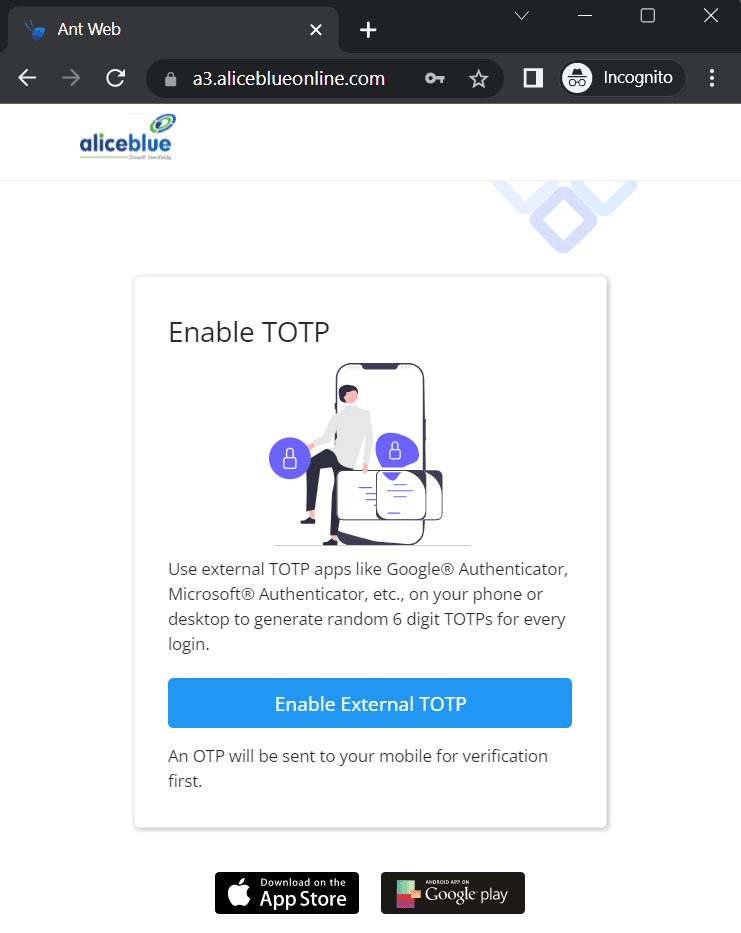
1. Enable Totp Screen
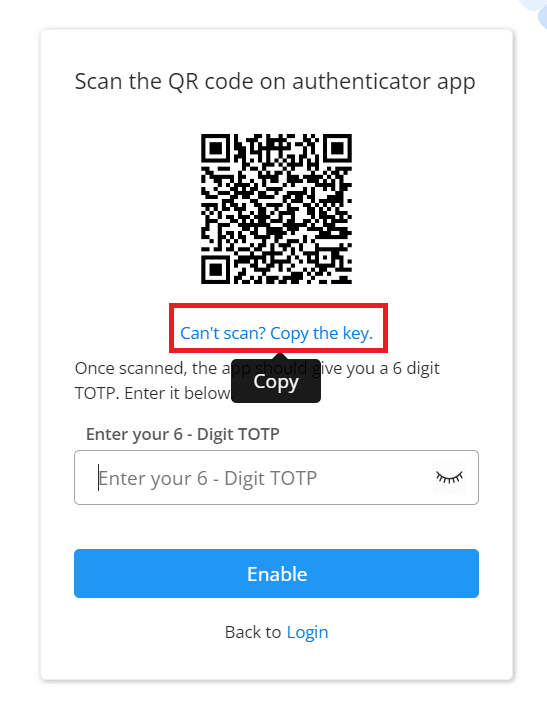
2. Click the link to Copy “Totp Key”
If you see “read-only user” or “not allowed to place orders”
If your orders fail with “You are a read-only user and are not allowed to place, modify, or cancel orders” (error EC086), it means trading is not enabled for your account at Aliceblue. AutoTrader Web cannot change this — only the broker can.
This usually happens for one of these reasons:
- Trading rights are not active on your account yet — for example because of pending dues, a negative balance, or an incomplete KYC or compliance step.
- The app you created in Step 2 does not have trading permission.
To fix it, log in to Aliceblue, make sure your account is clear to trade and your app has trading rights, then validate the account again in AutoTrader Web. If you are not sure, contact Aliceblue and ask them to enable trading for your account.
Static IP setup
The static IP setup is the same for every broker. Follow the full guide here:
Static IP Setup — get your static IP and register it with your broker
Bracket and cover orders on Aliceblue
Aliceblue offers bracket and cover orders of its own, and you can carry on using them — they are still in the Variety list and nothing about them changes. AutoTrader has its own versions too, and they are worth knowing about because they behave the same way on every broker you trade.
An AutoTrader bracket order (AT_BO) attaches a target and a stop-loss to your Aliceblue order, with an optional trailing stop that follows the price in your favour and never moves back. An AutoTrader cover order (AT_CO) is the same thing with a stop-loss only. Your entry reaches Aliceblue as an ordinary intraday order, and AutoTrader Web watches the price and sends the closing order when your level is reached. Use it when you want a trailing stop that behaves identically across brokers, when you want to change your levels after placing, or when you trade several brokers and want one set of rules.
Place one from the order window, from your own code, or from a chart alert. It is intraday only, it does not give you the extra intraday margin some brokers give on their own bracket orders, and the position is squared off automatically a short while before the market closes.
Read the risk before you use it. A stop-loss decides when we try to exit — it does not decide the price you get. A sudden move can take the price straight past your level, so your loss can be larger than the stop-loss you set. The full explanation, and the one-time terms you agree to before your first one, are on Bracket & Cover Orders.
Frequently asked questions
Does AutoTrader Web support Alice Blue?▾
Yes. Alice Blue is fully supported. You can connect one or many Alice Blue accounts and monitor live P&L, holdings and positions, place and manage orders, and copy trade across all of them from one screen, on web or mobile.
Can I copy trade with Alice Blue?▾
Yes. You can copy trade with Alice Blue in two ways — PMS copy from our terminal and master-child copy in the background — across accounts and brokers, with per-account sizing. You set up and control everything.
Can I manage multiple Alice Blue accounts together?▾
Yes. Add as many Alice Blue accounts as you like and see consolidated P&L, holdings and positions live, and trade across all of them at once.
How much does it cost to use Alice Blue with AutoTrader Web?▾
AutoTrader Web is ₹295 to ₹495 per account per month, with all taxes included, and a free 1-month trial. Your account also needs a static IP — this is required for every broker, not optional. It is ₹100 per month for one IPv6 static IP — you get a primary and a backup address, and the backup is included free (taxes included). This is the only static IP option for Alice Blue: bring your own IP is not offered for it. If Alice Blue charges separately for API access, that fee is set by the broker.
Can I place a bracket order on Aliceblue?▾
Yes, in two ways. You can use Aliceblue's own bracket and cover orders, which are unchanged, or an AutoTrader bracket order (AT_BO) or cover order (AT_CO), which behave the same way on every broker. Ours adds a trailing stop everywhere and lets you change your target and stop-loss after placing. It is intraday only and gives no extra margin, and a sudden price move can still take your exit past the level you set.
Next steps
Thanks for the feedback. Still stuck? Contact support.
Last updated 9 October 2026
