5paisa
Add and validate your 5paisa account in AutoTrader Web.
To add a 5paisa account to AutoTrader Web, set up a TOTP key on the 5paisa site, generate API keys, register a static IP, then create the trading account in Accounts -> Trading Accounts. This page covers the default 5paisa Open API. 5paisa also works through the Symphony XTS API.
5paisa offers two different APIs you can use to onboard your account:
- 5paisa Open API — the default. The steps below cover this option.
- Symphony XTS API — see the Symphony XTS guide to learn more.
Demo video
Step 1: TOTP key
- Install the Google Authenticator app on your phone.
- To get the TOTP Key, you need to set up TOTP on 5paisa.
- Log in to the 5paisa website.
- Click on your login id in the top right corner to open the menu.
- Go to menu Profile -> TOTP.
- Note: If you already have TOTP enabled but do not have the “Totp Key”, disable TOTP and enable it again.
- Click Enable external TOTP.
- Enter the OTP received on your phone or email.
- Enter your 6-digit MPIN.
- Scan the QR code in your Google Authenticator app.
- Copy the TOTP KEY shown below the QR code and save it in notepad for later use.
- Enter the TOTP shown in the Google Authenticator app.
- Click the Enable button.
- You will see the message “Totp successfully enabled.”
Screenshots
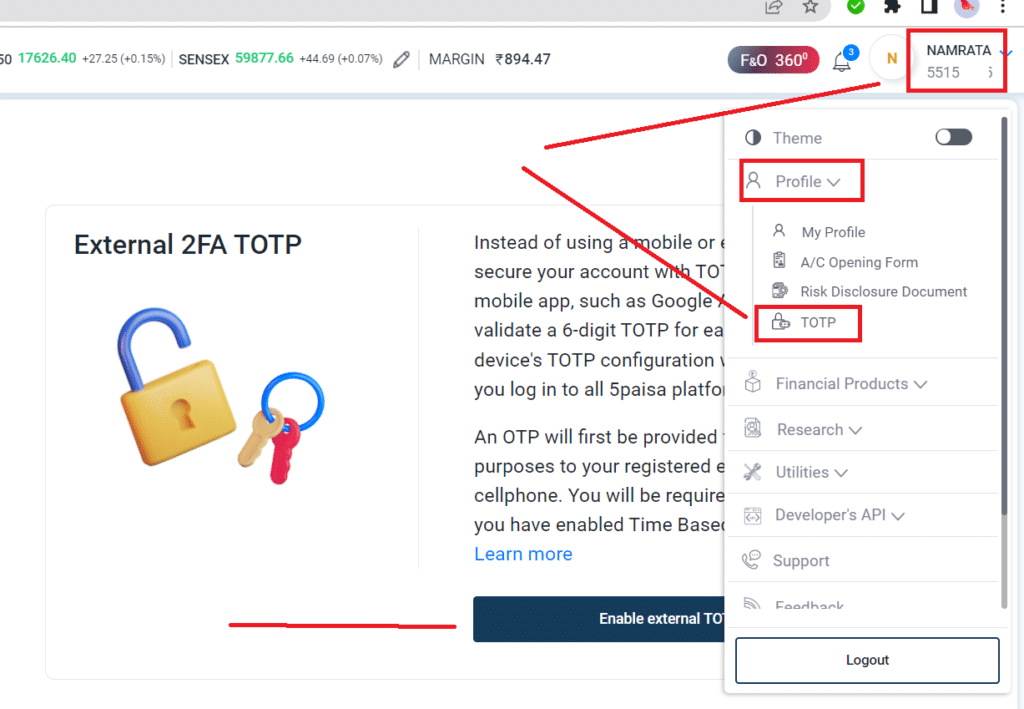
1. TOTP Menu
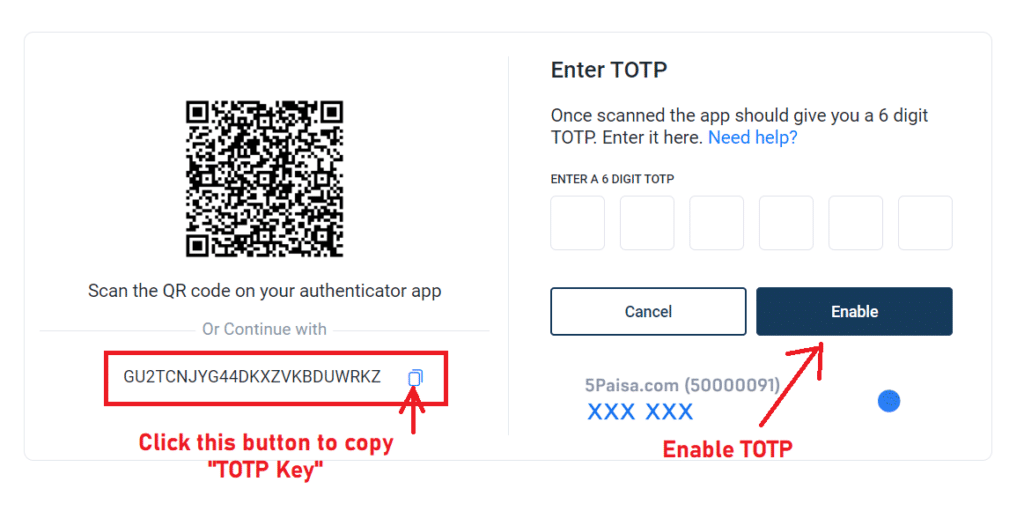
2. Enable TOTP
Step 2: Generate APIs
- Log in to the 5paisa website.
- Click on your Profile name (see screenshot below).
- Go to menu Xstream API -> Get API Keys (see screenshot below).
- Create App (see screenshot below).
- Redirect URL:
https://webx.stocksdeveloper.in/auth/5paisa - Static IP (see the next step).
Screenshots
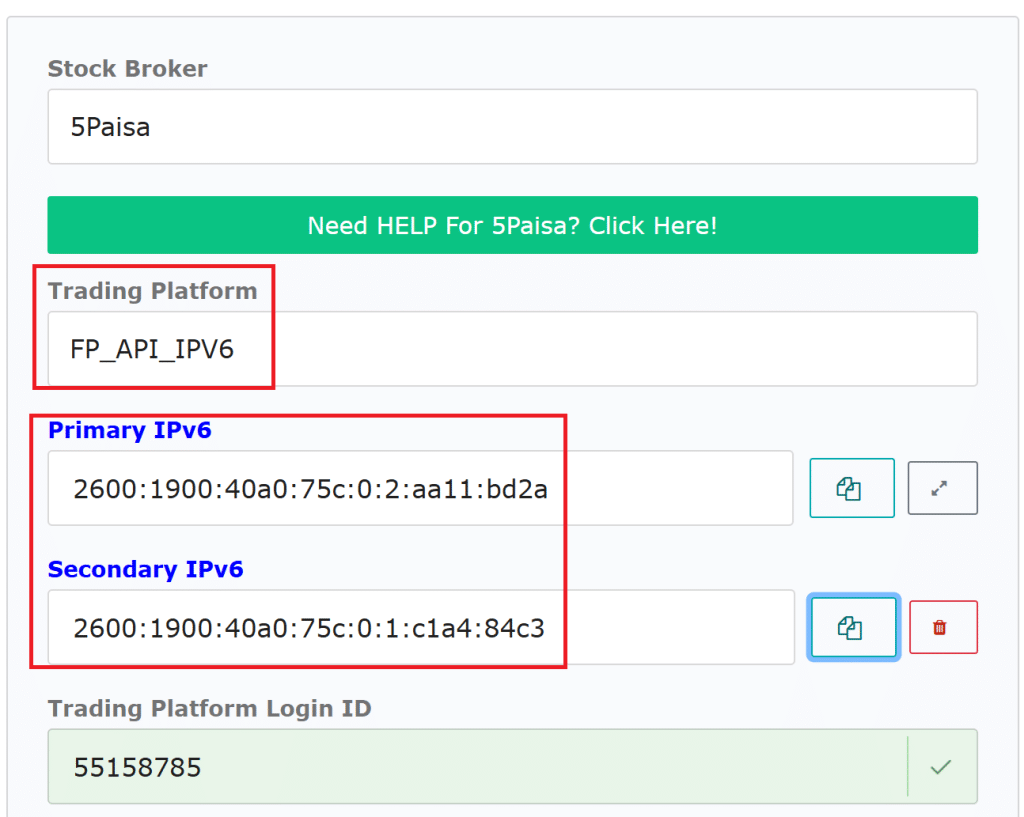
Click the Static IP button to get a static IP.
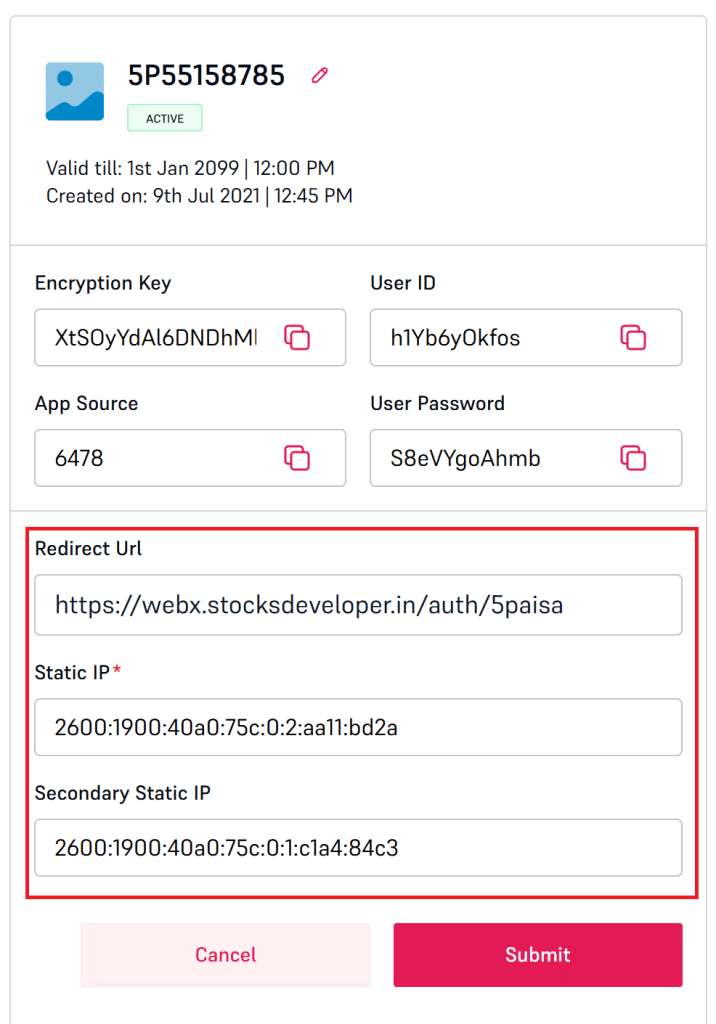
Register the static IP and redirect URL.
Step 3: Add trading account
- Log in to AutoTrader Web.
- Go to menu Accounts -> Trading Accounts.
- Click the Create button.
Use the mapping below to fill in each field. For reference, see the mapping screenshot above.
| Field | Value |
|---|---|
| Broker | 5paisa |
| Platform | FP_API_IPV6 |
| Login id | Your 5paisa login id |
| Static IP | Click the Static IP button and choose Buy Premium Static IPv6 from us to get your static IP (a primary and a backup IPv6 address, backup included free), then register it on 5paisa on the API creation screen (see above screenshot) |
| MPIN | Your 6-digit MPIN |
| TOTP Key | Your TOTP Key |
| User key | Your API key in the API details |
| App source | Your App source in the API details |
After filling in the fields:
- Click the Validate button.
- Once you see a success message, click the Save button.
Note: We have seen occurrences of a UserKey Not Found error for newly created APIs. It seems 5paisa takes some time to activate the APIs. In such cases, please try after a few hours or on the next day after API creation.
Related links
Bracket and cover orders on 5paisa
5paisa’s interface does not document a bracket or a cover order, and what is available can change without notice.
You can place one anyway. An AutoTrader bracket order (AT_BO) attaches a target and a stop-loss to your 5paisa order, with an optional trailing stop that follows the price in your favour and never moves back. An AutoTrader cover order (AT_CO) is the same thing with a stop-loss only. Your entry reaches 5paisa as an ordinary intraday order — the one thing every broker accepts — and AutoTrader Web watches the price and sends the closing order when your level is reached.
Place one from the order window, from your own code, or from a chart alert. It is intraday only, it does not give you the extra intraday margin some brokers give on their own bracket orders, and the position is squared off automatically a short while before the market closes.
Read the risk before you use it. A stop-loss decides when we try to exit — it does not decide the price you get. A sudden move can take the price straight past your level, so your loss can be larger than the stop-loss you set. The full explanation, and the one-time terms you agree to before your first one, are on Bracket & Cover Orders.
Frequently asked questions
Does AutoTrader Web support 5paisa?▾
Yes. 5paisa is fully supported. You can connect one or many 5paisa accounts and monitor live P&L, holdings and positions, place and manage orders, and copy trade across all of them from one screen, on web or mobile.
Can I copy trade with 5paisa?▾
Yes. You can copy trade with 5paisa in two ways — PMS copy from our terminal and master-child copy in the background — across accounts and brokers, with per-account sizing. You set up and control everything.
Can I manage multiple 5paisa accounts together?▾
Yes. Add as many 5paisa accounts as you like and see consolidated P&L, holdings and positions live, and trade across all of them at once.
How much does it cost to use 5paisa with AutoTrader Web?▾
AutoTrader Web is ₹295 to ₹495 per account per month, with all taxes included, and a free 1-month trial. Your account also needs a static IP — this is required for every broker, not optional. It is ₹100 per month for one IPv6 static IP — you get a primary and a backup address, and the backup is included free (taxes included). This is the only static IP option for 5paisa: bring your own IP is not offered for it. If 5paisa charges separately for API access, that fee is set by the broker.
Can I place a bracket order on 5paisa?▾
You can place an AutoTrader bracket order (AT_BO) on your 5paisa account. 5paisa's interface does not document a bracket or cover order of its own, so this is the reliable way to attach a target and a stop-loss. Your entry goes to 5paisa as an ordinary intraday order while AutoTrader Web watches your levels. It is intraday only and gives no extra margin, and a sudden price move can still take your exit past the level you set.
Next steps
Thanks for the feedback. Still stuck? Contact support.
Last updated 9 October 2026
